If your organization already books meeting rooms through Outlook or Teams, Q-NEX CPL50 can bring those room schedules to the meeting room entrance. After the Microsoft 365 organizational account is authorized and the room calendar is connected, calendar events synchronize automatically with the display. Employees continue making reservations through Outlook or Teams in this connected workflow.
Before planning an installation, confirm how your rooms are managed today, who will authorize the integration, and what people need to see at the door. These decisions help your team evaluate the proposed setup before reviewing detailed configuration documentation with Q-NEX.
When Does Microsoft 365 Integration Make Sense?
Calendar integration is worth considering when employees already use Microsoft 365 for room reservations but cannot easily see the schedule when they reach a meeting room. Someone standing outside a closed door may need to know whether the room is reserved or when the next meeting begins. A calendar-connected display makes that information available at the entrance.
This approach can suit an office that wants to keep its existing booking habits. Instead of introducing another employee reservation process, the project connects the room’s calendar information to its physical location. Facilities and IT teams can then assess the display requirements without first deciding to replace their calendar platform.
Start by identifying the gap you want to address. If people are selecting the wrong room in their invitations, room naming and calendar organization need attention too. If they need better cameras or presentation controls, those are separate requirements from scheduling. A room display should be evaluated for the task it performs.
If you are still comparing broader approaches, our guide to choosing a meeting room booking system covers system components and selection criteria. Here, the focus is the Microsoft 365-connected workflow.
How Outlook, Teams and CPL50 Work Together

It helps to separate the place where employees make reservations from the calendar that represents the room and the screen that shows its schedule.
| Component | Role in the connected workflow |
|---|---|
| Outlook or Teams | Employees make and manage room reservations through the agreed Microsoft 365 booking process. |
| Room calendar | Holds the reservations associated with the specific meeting room. |
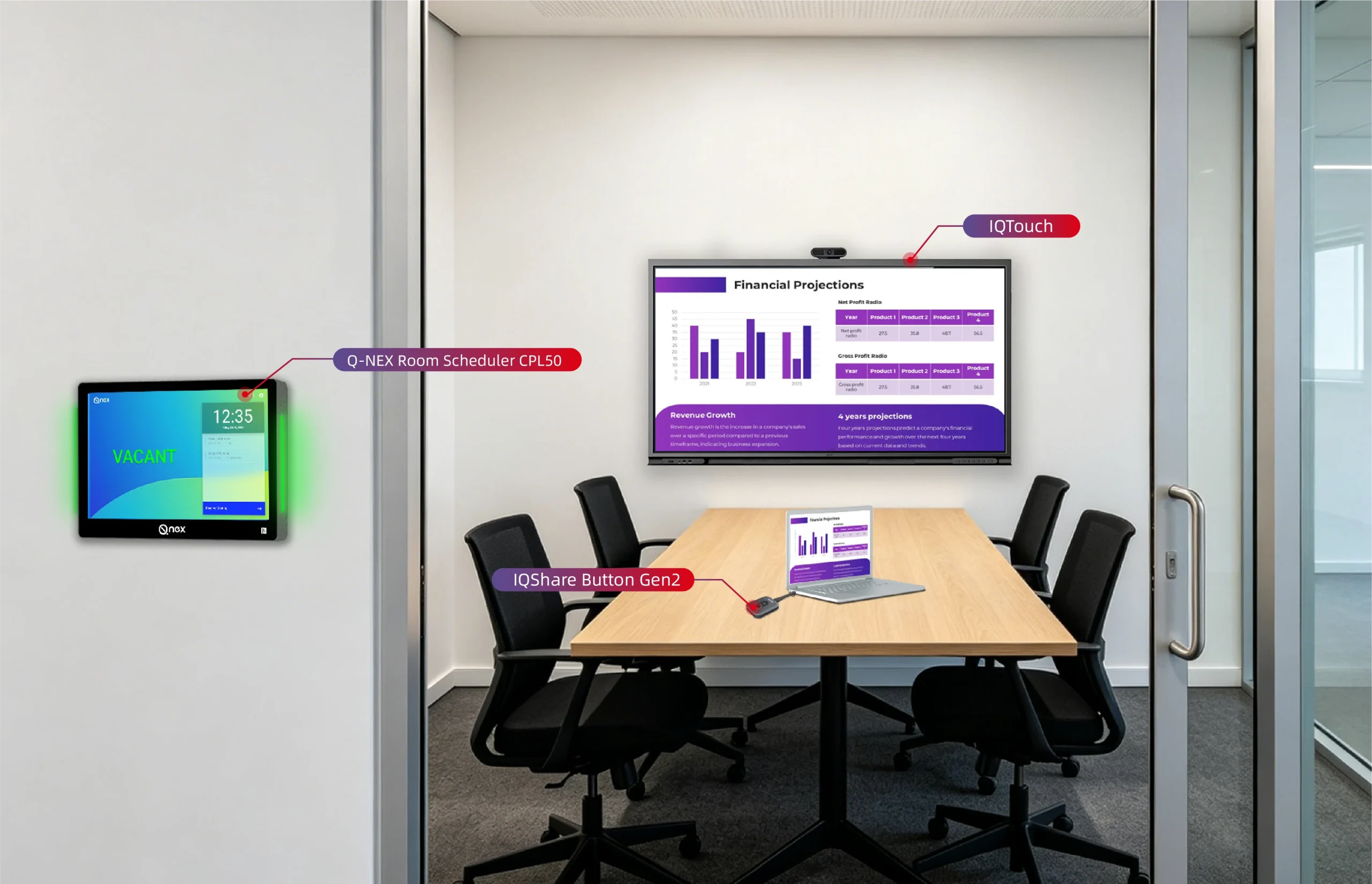
| Q-NEX CPL50 | Displays the connected room’s schedule and meeting information at the entrance. |
A room calendar represents a shared space rather than an individual employee. Microsoft explains the use of these resources in its room and equipment mailboxes FAQ. Your IT team should identify the relevant resource for each room before the connection is arranged.
The Q-NEX CPL50 Room Scheduler is a 10-inch wall-mounted touchscreen terminal with a room-status light bar. It connects with Q-NEX Console for room scheduling and management. In the Microsoft 365-connected setup, authorized calendar synchronization brings the room’s booking information to the panel.
For example, imagine an employee reserving a training room through the organization’s Outlook workflow. The reservation belongs to that room’s calendar, and its information appears on the associated CPL50 display after synchronization. This is an illustrative workflow, not a customer case study. The important relationship is between the reservation, the correct room calendar and the display outside that room.
What Should Your Team Confirm Before Integration?

Your Existing Calendar Environment
Describe how employees reserve rooms now. Are the rooms already represented in Microsoft 365? Do employees use a consistent booking process, or do some reservations still depend on messages to an office coordinator?
A short room list is useful at this stage. Include each room’s physical name, location and corresponding calendar resource, where one already exists. If the calendar name differs from the sign on the door, flag it for review. Clear identification matters more than creating a long technical specification before speaking with the supplier.
Who Owns Authorization
CPL50’s Microsoft 365 synchronization requires an authorized organizational-account integration. Involve the person responsible for your organization’s Microsoft 365 environment early, rather than leaving authorization until the displays arrive.
Ask that person to coordinate the internal review and discuss the required setup with Q-NEX. The exact configuration instructions belong in the project documentation reviewed by the IT team. At the evaluation stage, establish who can approve the connection and what information they need to assess it.
Which Panels Belong to Which Room
Match each planned panel location to the appropriate room calendar. This deserves particular attention when rooms have similar names or when different floors use the same numbering convention.
More than one CPL50 panel can be associated with the same room schedule. For a room with two entrances, discuss whether a display is needed at each entrance. Count the physical panels separately from the bookable rooms so the proposal reflects both the room layout and the calendar arrangement.
What Meeting Information Should Be Visible
Consider who can see the screen. An internal corridor and a visitor-accessible reception area may have different expectations for visible meeting details.
Tell Q-NEX what information your organization wants to show and what should remain private. Ask to review the proposed presentation in a demonstration. Treat these as project requirements to verify, rather than assuming particular privacy controls or display options are included.
How Will Employees and Administrators Use the Connected Workflow?

Employees continue to use the agreed Outlook or Teams process to reserve rooms and manage their bookings. At the room entrance, they consult CPL50 for the synchronized schedule and meeting information. Keeping this division clear makes it easier to explain the workflow to staff.
Administrative and IT responsibilities should also be clear. Decide who maintains the room list, who coordinates changes to calendar associations, and who receives reports when the displayed information does not match expectations. These responsibilities may belong to different people; the project should establish how they work together.
For example, renaming a room is more than replacing a door sign. The staff responsible for room information should review the related calendar and display identification so users can still recognize the correct space. Agree on this maintenance process before a wider rollout.
Keep scheduled availability separate from physical occupancy. A reservation shown on the calendar does not itself confirm that people are inside the room. If your project requires occupancy detection or other automation, discuss those requirements separately instead of assuming they follow from calendar synchronization.
What Should You Verify in a Demonstration?
Ask for a demonstration that follows your intended Microsoft 365 workflow. A useful starting point is one representative room, with the people responsible for booking and administration involved in the review.
The following checklist describes results to verify. It is not a report of completed tests or a guarantee of performance in every environment.
| Check | What to verify |
|---|---|
| Create a room reservation | The booking appears on the display associated with the intended room. |
| Change the meeting time | The updated schedule is reflected correctly after synchronization. |
| Cancel a reservation | The calendar change is reflected in the room’s displayed schedule. |
| Review visible information | The displayed details meet the project’s agreed requirements. |
| Review a room with multiple entrances | Each associated panel shows the correct room schedule. |
| Confirm support ownership | Staff know whom to contact and what information to provide if something looks wrong. |
Use ordinary situations from your office rather than only a supplier’s sample calendar. Include a rescheduled meeting and a cancellation, since both affect what someone expects to see at the door. Ask the team to explain any unexpected result before treating the review as complete.
If update timing is important to your operation, agree on how it will be assessed in the proposed environment. Do not turn an observation from one demonstration into an unsupported synchronization-time guarantee for every room or network.
What to Share with Q-NEX for a Project Review
Prepare the room count and types, current booking workflow, intended panel locations and deployment schedule. Identify an IT contact who can discuss Microsoft 365 authorization and the organization’s internal review requirements. Add any expectations about the meeting details shown outside each room.
You do not need to complete the technical configuration before an initial discussion. Share the project requirements first, then review the applicable product documentation and setup instructions with Q-NEX and your IT team. Do not send passwords or secret keys through a public inquiry form or ordinary email.
To review suitability for your rooms, discuss your Microsoft 365 room scheduling project with Q-NEX. Include your calendar environment and room list so the conversation can address the workflow you intend to use.
Frequently Asked Questions
Can Employees Keep Booking Rooms Through Outlook or Teams?
Yes. In CPL50’s Microsoft 365-connected workflow, employees make reservations through Outlook or Teams. Once the organizational account is authorized and the room calendar is connected, the associated CPL50 display synchronizes the room’s calendar events and shows the schedule at the entrance.
Does CPL50 Need an Authorized Microsoft 365 Connection?
Yes. Microsoft 365 calendar synchronization requires organizational authorization and a connection to the relevant room calendar. Involve your IT team to review the requirements with Q-NEX. Calendar compatibility should not be treated as a promise that no project setup or approval is needed.
Can Multiple CPL50 Panels Display the Same Room Schedule?
Yes. One or more CPL50 panels can be associated with the same room schedule. This can be relevant to a room with multiple entrances. Confirm the planned panel locations and calendar mapping during the project review.
How Can Our IT Team Obtain the Configuration Documentation?
Contact Q-NEX with your project requirements and Microsoft 365 environment. The team can provide the relevant product documentation and clarify the configuration requirements for review with your IT staff. This article explains the workflow and evaluation questions; it does not replace the product’s configuration instructions.
Here are some other articles that we think might interest you:
How to Choose the Best Meeting Room Booking System for Your Office
How Q-NEX Smart Podium Enhances Interactive Learning Experiences