Good small conference room design starts with the meeting, not the equipment list. Decide where people will sit, what they need to see and how remote colleagues will take part, then plan the table, display, camera, audio and connection points together. A compact room does not automatically need more technology; it needs a layout and workflow that suit the people using it.
This guide focuses on compact office rooms used for planned discussions, presentations and hybrid meetings. It helps IT, facilities and project teams turn a room idea into a practical layout and AV brief before choosing a complete configuration.
Start With the Meetings Your Small Room Must Support
Start with a few ordinary meetings your team actually holds. A project review with shared documents, a presentation to visitors and a video call with remote colleagues can place different demands on the same room.
Record the usual attendance, whether visitors bring laptops and which activities happen most often. Include the materials people use: slides, spreadsheets, drawings or shared documents. “We need a screen” is a starting point, but “everyone needs to read the figures in a budget review” is a more useful design requirement.
If you are improving an existing room, describe specific problems. Perhaps people move their chairs to see the display, remote colleagues cannot hear one seat, or a guest has to stretch a cable across the table. These examples help the project team assess changes without assuming every device needs replacing.
Microsoft’s Teams Rooms planning guidance starts with an inventory of meeting spaces and considers purpose, size and layout when identifying requirements. Here, those principles support a requirements-first review rather than a ready-made equipment list.

Choose a Layout That Works for People, Screens and Cameras
Put the room’s fixed features on one sketch: the door, windows, display wall, available power and network points, and any furniture that will remain. Add the table and chairs, then mark the camera and the connection point employees will use.
Review the sketch as a person using the room. Can someone enter while colleagues are seated? Can a chair move normally without pulling a connected laptop? Does reaching the connection point require leaning across another person’s workspace? Have the project designer confirm access and circulation requirements rather than treating an illustrative diagram as a compliance plan.
Two layout concepts can help you discuss the trade-offs:
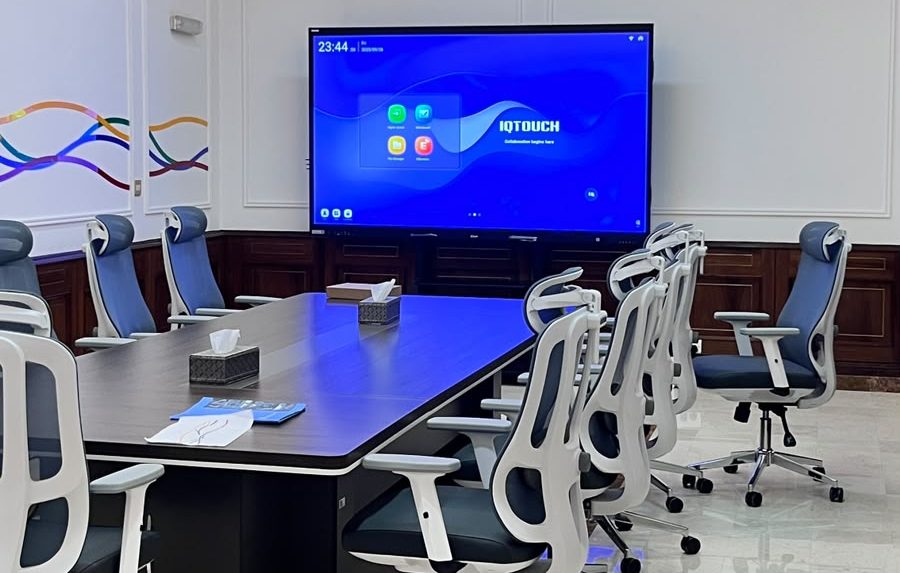
- A rectangular discussion table: Participants sit along both sides. It may suit face-to-face discussion, but side seats can require people to turn toward the display. Check how those seated postures appear on camera.
- A shallow curved table facing the display: Seats are oriented toward the screen. It gives the team another arrangement to assess for shared viewing and remote participation, but still needs review for everyday discussion, usable table space and access.
Neither shape is automatically better. Compare them using the same meeting tasks, furniture constraints and camera view. A table that looks tidy in a drawing may behave differently once laptops, notebooks and people are in place.
The accompanying layouts are conceptual illustrations, not scaled floor plans, capacity recommendations or installation drawings.
Plan the Display Around the Content and the Hardest Seat

Choose the viewing arrangement around what people must read, not just what fits on the wall. A slide with large headings is a different task from reviewing a spreadsheet with small figures.
Before approving a small conference room layout, use representative material and check it from each intended seat. Pay particular attention to the position that has the least favorable view. That might be a side seat rather than the one furthest from the screen.
Look for three separate problems: content that is too small to read comfortably, an awkward viewing direction and an obstructed or reflective view. Moving a display, changing the seating arrangement or adjusting how material is presented may address different problems. A larger screen should not be the automatic answer to all three.
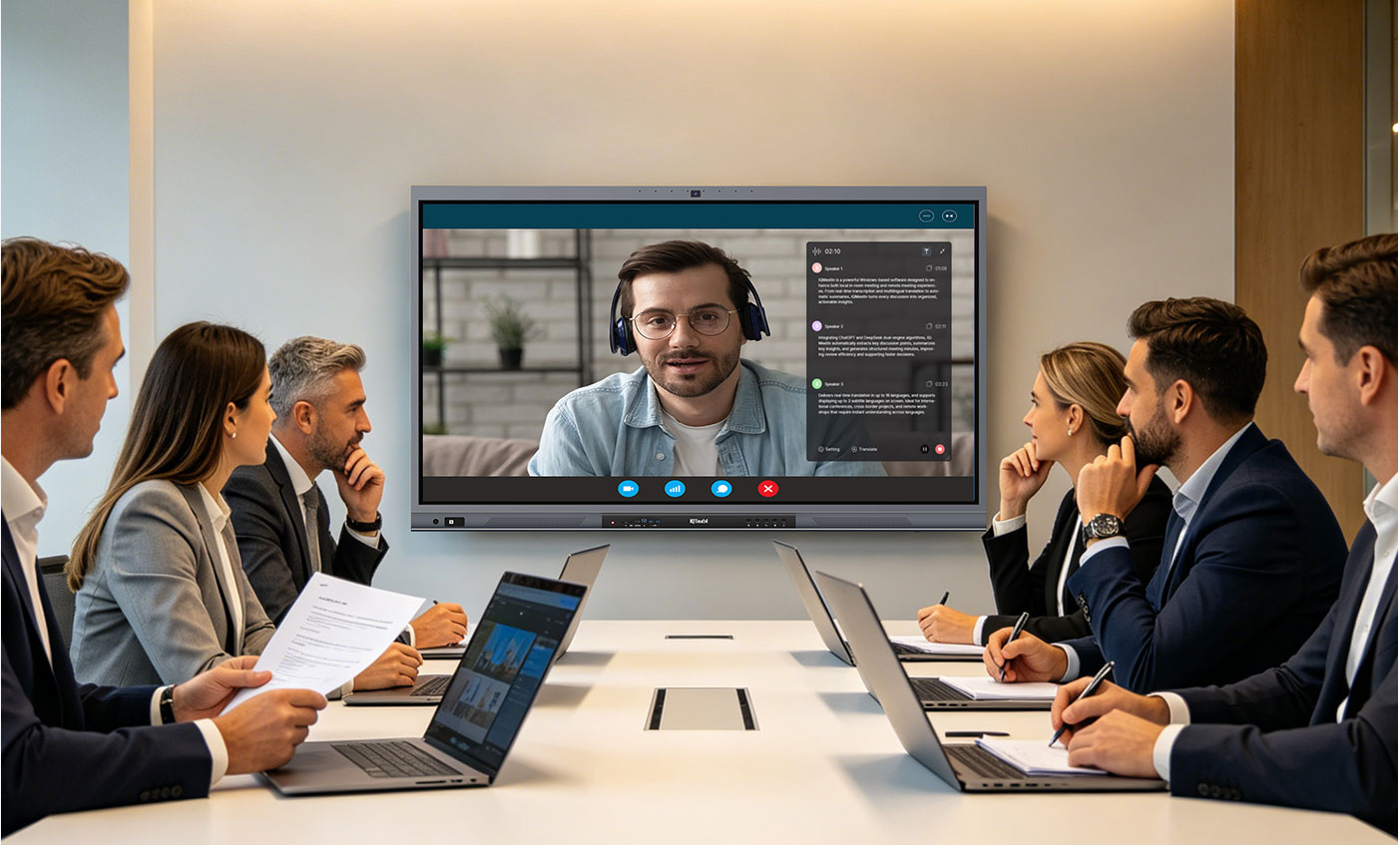
Consider whether people need to see remote participants and shared content at the same time. Two displays may be worth evaluating when keeping both visible matters. One display may be sufficient when the agreed meeting workflow allows people to switch views. Decide from the task and available wall space, not a rule that every hybrid room needs two screens.
Ask the project team to confirm the proposed display and mounting arrangement. This guide does not prescribe a universal screen size or viewing-distance formula.
Check What Remote Participants Will See and Hear
Evaluate the room from the other end of a call, not only from inside it. Arrange the intended seats and use ordinary meeting postures. Include the laptops or other objects people normally put on the table.
Check whether participants are visible when they look at the display, turn toward a colleague or lean back. A camera view of an empty table cannot establish that faces will remain visible during a discussion. Note any seat where a laptop, another person or the table arrangement blocks the view.
Treat audio as a separate check. Ask someone outside the room to listen while each seated participant speaks at an ordinary level. Then ask that person to speak and check whether people in the room can follow the conversation. Record the seat and conditions where a problem occurs instead of describing the room simply as having “bad sound.”
These are planning checks to identify requirements, not proof that a proposed microphone or camera will cover the room. Use our guide to choosing a conference room microphone and speaker system for the audio selection questions. If the conferencing host itself is undecided, review how to choose a video conferencing system for conference rooms before fixing the connection layout.
Resolve Lighting, Room Sound and Infrastructure Early

Windows, room lighting and reflective surfaces belong in the initial review. Microsoft’s hybrid meeting space design guidance discusses avoiding glare and backlighting and providing suitable illumination for participants. Use those considerations to ask questions about your room; do not copy a platform-specific example as a universal Q-NEX room specification.
Check the proposed layout at the times the room is normally used. Note reflections on the display, a bright window behind a participant or an area where faces appear poorly lit. Ask the responsible designer which changes are appropriate before finalizing the camera and display positions.
Listen to the room with its usual building services running. If ventilation noise or room reflections make conversation difficult, include that observation in the brief. Do not assume a different microphone or software setting will resolve every environmental problem. Acoustic treatment, where needed, should be assessed for the actual space.
Next, identify where power, network connections and AV cables will run. Avoid designing the furniture first and discovering later that the intended laptop connection is inconvenient or that equipment cannot be reached. Have qualified project personnel confirm the installation requirements.
Maintenance access matters too. IT should be able to identify and reach the installed equipment and its connections without dismantling the meeting room. Record any cabinet, furniture or access restriction that the proposed arrangement must accommodate.
Make the Everyday Connection and Control Workflow Clear
A room can have a sensible furniture layout and still be confusing to use. Decide which device runs the meeting and where the person operating it will sit.
In a BYOD, or bring-your-own-device, arrangement, a participant uses their own device for the agreed room task, such as presenting content. BYOM, or bring your own meeting, refers here to running the meeting on a participant’s device while using the room’s supported conferencing peripherals. Confirm the specific connection and compatibility requirements for the proposed configuration.
Alternatively, the room may use a fixed conferencing host. That changes which connections guests need and who controls the meeting. Resolve this choice before placing the laptop connection point or committing to furniture cut-outs.
Describe the ordinary sequence in plain language: where the user connects, how the required source is selected, how the meeting uses the room devices and where to get help. Try it with someone who did not help design the room.
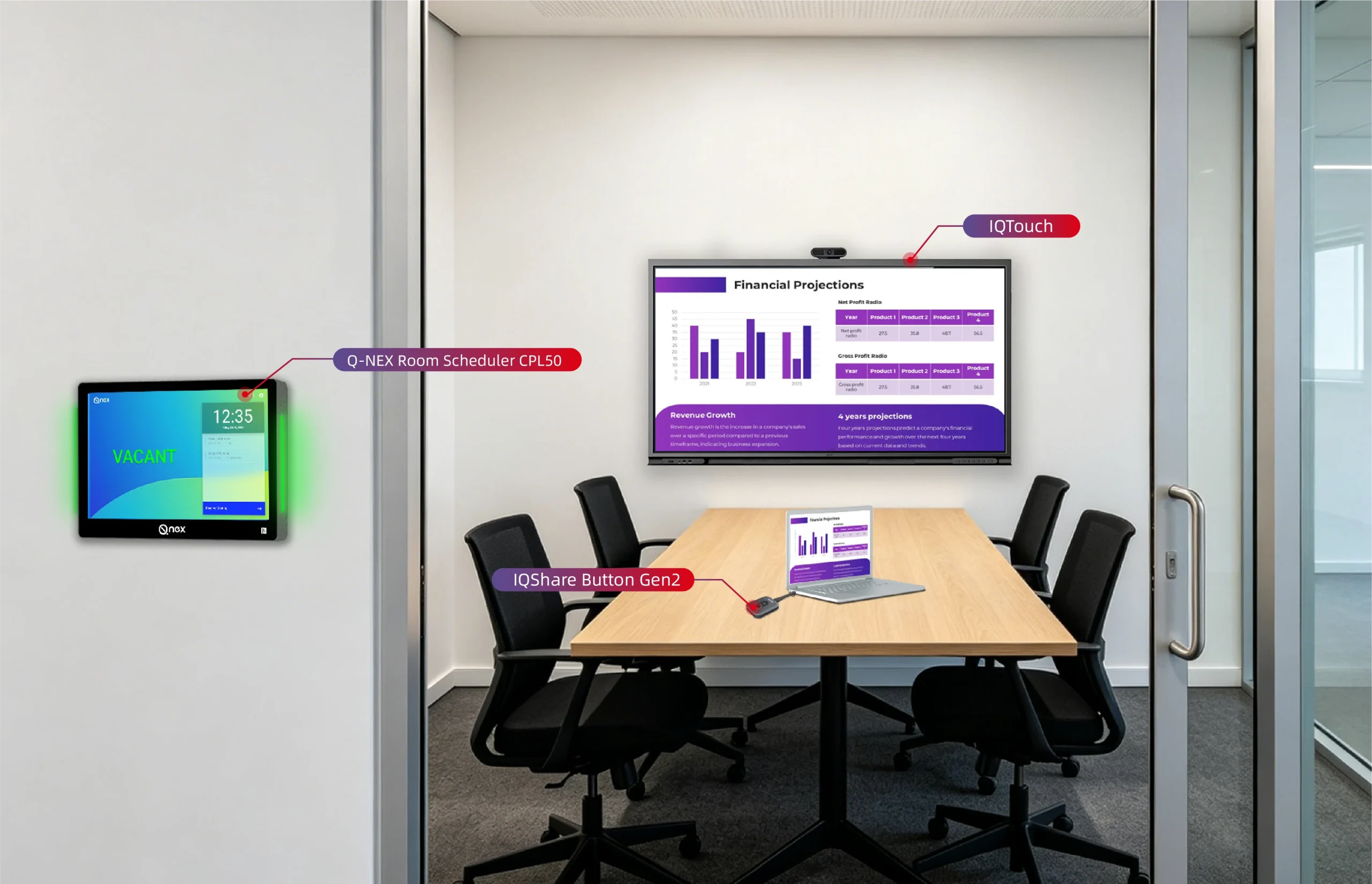
Wireless presentation or a room booking display may support the agreed workflow, but neither replaces these decisions. Keep content sharing, conferencing connections and room reservations as distinct requirements rather than assuming one feature handles all three.
Review the Small-Room Plan With Q-NEX
Bring the physical layout and the connection workflow into the same review. The following Q-NEX editorial planning framework helps organize that discussion. It is not a customer case study, tested performance report or engineering approval.
| Room constraint | What to decide together | What to check before approval |
|---|---|---|
| The table crowds the entrance | Seats, table position and connection access | Normal entry and chair movement, with access requirements confirmed by the designer |
| The screen is visible but documents are difficult to read | Meeting content, seating and display arrangement | Representative material from each intended seat |
| A laptop blocks a participant’s face | Tabletop objects, seated posture and camera view | Participants visible during ordinary meeting activity |
| Remote colleagues cannot hear one seat | Seating, room noise and proposed audio coverage | A two-way call that includes each seat |
| Guests are unsure how to connect | Meeting host, connection point and user instructions | A new user can follow the agreed workflow |
| Equipment is hidden but difficult to maintain | Equipment location, cable route and service access | IT can identify and reach the relevant connections |
The Q-NEX NPS150 presentation switcher can form part of the room’s AV switching, BYOD/BYOM and USB peripheral connection arrangement. Its approved role also includes configured device control and management through Q-NEX Console or App. NPS150 is not itself the room’s camera, microphone, audio processor or conferencing host. Keep those roles separate when evaluating the plan: providing access to a peripheral is different from determining its pickup, framing or processing performance.
For a useful discussion, share a room sketch or photographs, intended seating, existing equipment models and interfaces, your conferencing platform and the preferred host arrangement. Add a few concrete problems you want the design to solve.
Explore the Q-NEX Smart Meeting Room solution for the broader integration approach, then discuss your small conference room project with Q-NEX. The aim is to review the layout and connectivity requirements together before recommending a configuration, not to assign a package from the seat count alone.
Frequently Asked Questions
What Makes a Small Conference Room Different From a Huddle Space?
The distinction is about use as well as size. This guide focuses on planned meetings, shared documents and hybrid participation. A huddle space may prioritize brief, spontaneous discussions and quick startup. Define the actual workflow first; the room’s name alone does not settle its AV requirements.
Is There a Standard Minimum Size for a Small Conference Room?
There is no single minimum supplied by this guide. The usable layout depends on furniture, access, circulation, meeting activity and applicable local requirements. Have the project designer assess the space. An illustrative seating arrangement is not approval of a room’s legal capacity.
Does a Small Meeting Room Need Two Displays?
Not necessarily. Evaluate whether participants need shared content and remote colleagues visible at the same time. Also consider wall space and viewing positions. Compare the proposed arrangement with real meeting material before deciding; two displays should serve a clear task.
Can We Keep Our Existing Table and AV Equipment?
Possibly. Start by checking which parts support the intended layout and workflow and which create a specific problem. Provide equipment models and interfaces for compatibility review. Keeping a table should not mean overlooking obstructed views, inconvenient connections or maintenance access.
What Should We Send Q-NEX Before Discussing a Small-Room Project?
Send the room layout, photographs, intended seating, existing equipment details, conferencing platform and whether meetings run on guest laptops or a fixed host. Include examples of problems users encounter. These inputs help turn a general request into a focused project discussion.
Here are some other articles that we think might interest you: