Huddle room AV solutions should match the way a small team works: talking together, reviewing content or bringing a remote colleague into the conversation. Start by deciding which of these activities the room must support, then make the connection and meeting steps clear. The right setup also gives people a straightforward way to finish and leave the room ready for its next users.
For office managers and IT teams, that means looking beyond a list of devices. A display may be easy to find, while the correct connection or meeting host is less obvious. This guide focuses on those everyday decisions, from entering the room to handing it over.

What a Huddle Room Needs to Help People Do
A huddle room is a compact space for small-group collaboration. In this guide, the emphasis is on short discussions, shared work and calls that do not require a larger formal meeting room. The name does not set a universal seat count or equipment specification. Your room’s layout, intended users and approved capacity still matter.
Begin with the conversations people expect to have there. A team comparing two design options may only need to see the same document. Another group may need a colleague in a different office to hear the discussion and contribute. Those are different requirements, even if both groups use the same table.
Ask users to describe a typical visit in ordinary language. “We bring a laptop and review a spreadsheet” is more useful at this stage than “we need a smart room.” Ask what happens when a second person wants to present, or when someone needs to join remotely halfway through.
Keep the physical design and the daily workflow connected, but review them separately. Our small conference room design guide covers layout and AV planning. Here, the question is what people should do with the room once that arrangement is in place.
Choose the Workflow Before the AV Equipment
Choose the activities the room must support before deciding how much technology to add. You may need all three workflows below, or just one. Make that choice explicit so users know what the room is intended to do.
Local Discussion
When everyone is physically present, start with the shared material. Will people discuss printed notes, work at a board or review something on a display? Do they need to capture the result afterward?
Avoid making users start a video meeting just to hold a local conversation. If a display is part of the arrangement, give them a clear route to show their content without first working through an unrelated calling process.
Content Review and Presenter Changes
For shared content, identify where it comes from and how it reaches the display. An employee laptop, a visitor’s device and a room computer may require different approved routes. Confirm which ones the project will support.
Also decide what happens when the presenter changes. Does the first person stop sharing before the next person connects? Who selects the next source? A brief instruction can explain the intended sequence without exposing the technical configuration behind it.
Wireless sharing can be one option, but it needs its own compatibility and access checks. Do not treat a wireless presentation path as proof that the same laptop can use the room’s camera and audio equipment.
Hybrid Conversation
A hybrid conversation includes people in the room and people joining remotely. Identify the meeting host: the computer or room system running the call. Then confirm how that host accesses the room’s camera, microphone and speaker arrangement.
If employees bring their own laptops to run the meeting, the project may use a bring-your-own-meeting, or BYOM, workflow. Users need to know how their laptop connects to the room equipment, as well as how to join the call. The supported devices and meeting applications must be checked for the proposed configuration.
A room used mainly for local discussion does not automatically need the same setup as one used for daily hybrid calls. Conversely, adding a camera does not by itself define the whole calling workflow. For the broader selection decision, see our guide to choosing a video conferencing setup for conference rooms.
Make the Start of Each Meeting Easy to Understand
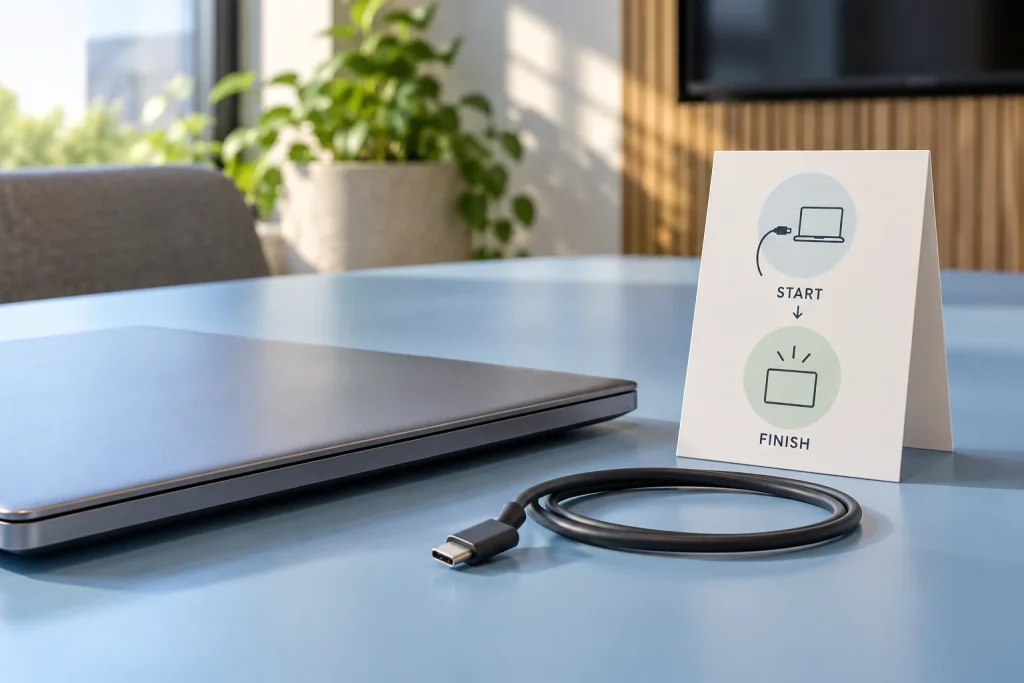
Walk through the room from the perspective of someone who has never used it. They should be able to identify where to begin, which device runs the meeting and where to get help. Keep the everyday instructions close to the place where the action happens.
For example, a connection point can have a short label explaining its intended use. If there is more than one route, distinguish them by task rather than leaving users to interpret port names. “Show your laptop content” and “Use the room devices for a call” describe different outcomes; the instructions should reflect the capabilities actually installed.
Give visiting presenters a defined route too. Decide whether a staff member assists them, which devices are supported and whether access needs to be arranged in advance. This is especially useful when a visitor cannot use the same software or network access as an employee.
Keep the user guide short enough to consult during a meeting. It should answer:
- Where do I connect or begin sharing?
- Which device runs the call, if one is needed?
- What should I see or hear when the room is ready?
- Who can help if the expected result does not appear?
Explain the expected result rather than promising a fixed startup time. A configured room-control action may prepare supported equipment, but users may still need to join a meeting or select devices in their application. Confirm these steps for the actual installation before calling the experience “one-touch.”
Try the guidance with a colleague who did not help design the room. Watch where they hesitate and ask what they expected to happen. Use that feedback to improve the labels or instructions. This is a usability check, not a substitute for technical testing of the equipment.
Plan the Handover to the Next Group

A huddle room workflow should include the end of the meeting. Otherwise, the next group may arrive to find the previous laptop still sharing, a call still running or a connection cable left somewhere unexpected.
Define the condition in which people should leave the room. Depending on the arrangement, that can include stopping content sharing, leaving the call, disconnecting personal equipment and returning shared accessories to their marked place. The room guide should explain which actions belong to the user and which are handled by the configured system.
Do not assume that disconnecting one cable ends every activity. Users should follow the relevant application and room instructions, then check that their content is no longer being shown. If a shared computer is used, its account and session handling should follow the organization’s IT policy.
Give users a simple way to report a problem before they leave. Ask for the room name, the task they were trying to complete and what happened instead. “My content appeared, but the call did not use the room microphone” gives the support team a clearer starting point than “the room is broken.”
If rooms are booked, deal with the reservation through the agreed booking workflow. Ending a call, leaving the room and changing a calendar reservation are separate actions unless a confirmed project configuration connects them. The meeting room booking process guide covers those responsibilities in more detail.
Keep the Experience Consistent Across Huddle Rooms
When several rooms serve similar purposes, aim for a familiar sequence of actions. Employees should not have to learn a different meaning for the same label each time they move to another floor.
Use consistent wording for starting a local presentation, joining a call and finishing a session. Put connection guidance and support details in predictable places. If a room works differently, make that difference visible before someone starts a meeting there.
Consistency does not require identical equipment everywhere. Existing displays or room layouts may differ. What matters is that the user guide describes the supported workflow accurately, including any important exception. A room that supports local sharing only should not appear interchangeable with one prepared for hybrid meetings.
Choose one person or team to own updates to the instructions. When the approved connection route changes, the tabletop card and internal guide should change with it. Keep technical configuration notes separate from the short guidance intended for employees.
For a wider office plan, the meeting room technology overview explains how room technology fits into the overall environment. Use this huddle-room workflow to make the everyday user experience specific within that larger plan.
Build a Huddle Room Workflow Brief for Your Project
Use the following Q-NEX planning worksheet to turn a general request into a project discussion. It is a suggested framework, not a tested configuration or a fixed equipment package. Complete it for the activities your room actually needs.
| Activity | Expected user action | Project question to resolve | End condition |
|---|---|---|---|
| Local discussion | Use the agreed shared workspace | Is a display or other shared surface needed? | Materials collected or saved as agreed |
| Content review | Share through the approved connection | Which employee and guest devices are supported? | Personal content no longer shown |
| Presenter change | Stop the first share and start the next | Who changes the source, and by which route? | The intended presenter’s content is visible |
| Hybrid call | Join on the agreed host and use room devices | Which host, application and peripheral path are confirmed? | Call left and personal equipment disconnected |
| Room handover | Follow the finish steps and report faults | Which actions are manual, and who receives reports? | Room left in its agreed ready state |
For an illustrative example, imagine a project team that reviews drawings locally and sometimes invites a remote engineer. The brief would identify the usual presentation route, the laptop or system that hosts the occasional call, and how the presenter changes. It would also specify who ends sharing and what the next group should find on arrival. This is a planning example, not a customer case or a promise about a particular product combination.
Mark unresolved items clearly. If guest-device support is still unknown, record that question for the project team rather than writing “works with any laptop.” This makes the brief useful when comparing proposals: each supplier can explain the route they support and the conditions that apply.
Where Q-NEX Fits Into the Huddle Room Workflow
For projects that need AV switching, USB-peripheral access and configured room-device control, the Q-NEX Networked Presentation Switcher NPS150 is a relevant component to discuss. It supports BYOD and BYOM workflows and remote management through Q-NEX Console and App.
Its role should be matched to the proposed system. The display, conferencing peripherals and meeting host still need to be selected and checked together. Wireless presentation, device compatibility and the exact user steps should be confirmed for the project rather than inferred from the switcher alone.
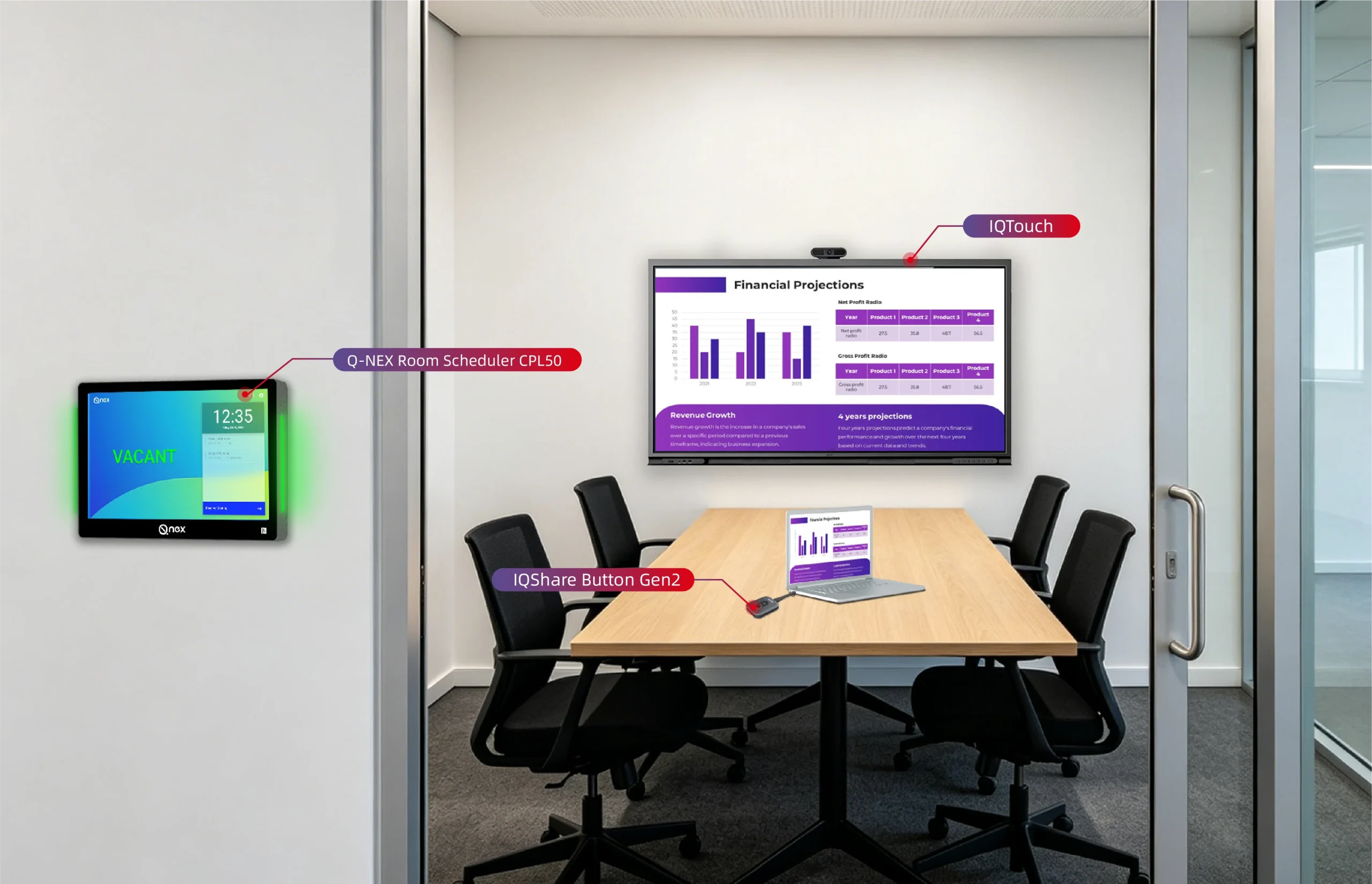
Where a shared room also needs scheduling and entrance status information, Q-NEX CPL50 Room Scheduler addresses that separate requirement. Calendar integration and the booking workflow should be agreed for the installation. A scheduler is not a requirement for every huddle room, and its role should not be confused with starting the room’s AV equipment.
The Q-NEX Smart Meeting Room solution provides the commercial starting point for discussing the overall arrangement. Bring the workflow brief, the devices you hope to retain and the meeting applications your teams use. Include any differences between employee and visitor access.
Discuss your huddle room project with Q-NEX to review the required workflows, room count and proposed equipment connections. With those details, the conversation can focus on an appropriate configuration and the items that need confirmation before deployment.
Frequently Asked Questions
How Is a Huddle Room Different from a Small Conference Room?
The terms can overlap. Here, huddle room describes a compact space organized around small-group collaboration and straightforward everyday use. A small conference room may serve similar activities or more formal meetings. Define the intended tasks rather than relying on the room name to specify its AV requirements.
Does Every Huddle Room Need Video Conferencing?
No. A room intended for local discussion or shared content may not need a video-calling setup. If remote participation is part of the requirement, plan the host, camera, audio and connection workflow together. Make the supported uses clear to employees.
Does Wireless Screen Sharing Include Access to Room Cameras and Audio?
Not necessarily. Showing laptop content on a display and allowing that laptop to use room peripherals are separate requirements. Confirm whether the proposed wireless arrangement supports presentation only or the required BYOM workflow, including its device and application conditions.
Does a Huddle Room Need a Booking System?
That depends on how the organization allocates the space. Some rooms use an agreed walk-in policy; others need reservations and visible schedule information. Decide the access rules first, then choose the scheduling support that fits them. Keep those rules separate from the instructions for presenting or joining a call.
Here are some other articles that we think might interest you: