Introduction
A meeting room can contain modern displays, cameras, microphones, and collaboration software and still feel difficult to use. Someone has to turn on the display, select the correct source, start the conferencing system, adjust the audio, and prepare the room environment. When a meeting ends, devices may remain powered on and IT teams may have no visibility into what happened.
Meeting room automation solves this operational problem. It coordinates devices and room actions around predefined triggers, rules, and meeting scenarios, so routine tasks happen consistently with less manual effort.
In practical terms, meeting room automation can prepare a room before a scheduled session, launch a presentation scene with one touch, switch AV sources during the meeting, return equipment to standby afterward, and give administrators a centralized view of multiple rooms. The purpose is not to remove user control. It is to remove repetitive setup and make the correct workflow easier to follow.
What Is Meeting Room Automation?
Meeting room automation is the use of triggers, control logic, integrated devices, and management software to perform routine room actions automatically or through a single command. Those actions may include powering displays, routing AV signals, selecting meeting modes, adjusting audio, controlling lights or curtains, starting scheduled tasks, and shutting devices down when the room is no longer in use.
A meeting room automation system usually connects four elements:
- Triggers, such as a calendar event, time schedule, touch-panel command, device status, or occupancy signal.
- Control logic that decides what should happen, in what order, and under which conditions.
- Controlled endpoints, such as displays, projectors, AV switchers, cameras, audio systems, lights, curtains, and room-scheduling devices.
- Feedback and management tools that confirm device status, report exceptions, and allow IT teams to monitor rooms centrally.
The result is a room that behaves as a coordinated system instead of a collection of unrelated devices.
Meeting Room Automation vs Control Systems vs Room Scheduling
These terms often appear together, but they answer different questions. Keeping them separate helps buyers define scope and prevents a project from purchasing a booking panel when the real need is AV automation, or buying a control processor without defining the workflows it should run.
| Concept | Primary Role | Typical Example |
| Meeting room control system | Provides the interface and control layer used to operate AV and room devices. | A touch panel controls display power, source switching, volume, camera presets, lights, and curtains. |
| Room scheduling system | Manages room availability, booking, check-in, and calendar information. | A scheduling panel shows whether the room is free and allows users to reserve or check in. |
| Meeting room automation | Coordinates actions according to triggers, rules, and predefined workflows. | A calendar event prepares the room, a meeting scene starts with one touch, and devices shut down after use. |
| Centralized meeting room management | Gives administrators visibility and operational control across rooms or locations. | IT monitors device status, applies schedules, reviews exceptions, and manages multiple rooms from one platform. |
The technologies overlap by design. A control system executes commands, a scheduler may provide time or calendar triggers, automation defines the sequence, and a centralized platform makes the workflows manageable at scale.
How a Meeting Room Automation System Works
Every reliable automation starts with a simple chain: trigger, decision, action, and feedback. The room detects or receives an event, applies the relevant rule, sends commands to connected devices, and verifies whether the expected state has been reached.
| Stage | Question | Meeting Room Example |
| 1. Trigger | What starts the workflow? | A scheduled meeting is approaching, a user presses Start Meeting, or an administrator runs a task. |
| 2. Decision | Which rule or room mode applies? | The system selects Presentation, Video Conference, Training, or Shutdown mode. |
| 3. Action | What should each device do? | The display powers on, the correct source is routed, audio settings load, and lighting changes. |
| 4. Feedback | Did the action complete correctly? | Device status is returned to the interface or management platform; an exception can be flagged for support. |
Sequence matters. A projector may need time to warm up before a source is displayed. An AV switcher may need to confirm signal availability before routing content. A shutdown workflow may mute audio before powering down displays. Good automation accounts for these dependencies instead of sending every command at once.
A Practical Meeting Automation Workflow
The clearest way to understand conference room automation is to follow one meeting from preparation to shutdown.
Before the Meeting: Prepare the Room
A schedule or calendar event can trigger room preparation before participants arrive. Depending on the project, the system may wake selected devices, confirm that displays and AV processors are online, load the expected room mode, and set the room environment for use.
This does not mean every device should run all day. The automation window can be limited to the time required for reliable startup, helping balance room readiness with energy use.
At Meeting Start: Launch the Right Scene
When the user enters, the room should present a small number of clear choices. A one-touch Presentation scene might power the display, select wireless sharing, set a standard audio level, and prepare the room for local collaboration. A Video Conference scene might select the conferencing source, apply camera and audio settings, and arrange shared content on the displays.
The important point is that the user chooses the outcome, not the individual device commands.
During the Meeting: Change Modes Without Rebuilding the Setup
Meetings often move from discussion to presentation and then to remote collaboration. Scene presets allow users to change the room state without repeating the complete setup. The control interface can expose common actions such as Share Laptop, Video Call, Dual-Screen Mode, Mute, or Discussion Mode while keeping detailed device settings in the background.
At Meeting End: Restore a Known State
An End Meeting command can stop content routing, mute audio, return cameras to a default position, and place devices into standby. If users forget, a timed rule or no-use condition can provide a second layer of shutdown logic, subject to the room design and connected sensors.
This improves energy discipline and ensures the next meeting starts from a predictable state.
For IT: Monitor the Workflow Across Rooms
The same automation data can help IT teams manage a fleet of rooms. Administrators can check whether devices are online, apply operation schedules, identify rooms that did not reach the expected state, and respond remotely where supported. Instead of waiting for a user to report that a room is not ready, the team gains earlier operational visibility.
Five High-Value Meeting Room Automation Workflows
1. Scheduled Room Readiness
Scheduled readiness is useful for rooms with predictable operating hours or booked sessions. The system can prepare only the devices needed for the expected room mode and avoid leaving the full technology stack powered continuously.
The workflow should include exceptions. If a meeting is canceled, the room should not remain active unnecessarily. If an urgent unscheduled meeting begins, users should still be able to start the room manually.
2. One-Touch Meeting Start
One-touch start reduces the number of decisions users must make. Instead of controlling a display, AV switcher, audio system, and camera separately, the user selects the desired scenario. This is especially valuable in shared rooms used by different departments, guests, or occasional presenters.
A successful one-touch workflow should complete the common setup while still allowing manual adjustment of volume, source, camera, or room mode when needed.
3. Scene Presets and Source Switching
Scene presets translate business activities into room behavior. Typical scenes might include Presentation, Hybrid Meeting, Training, Executive Briefing, and Room Shutdown. Each preset can define source routing, display layout, audio level, camera behavior, and environmental settings.
This approach is more scalable than designing a different control interface for every room. Organizations can standardize a core set of scenes and then adjust the available devices for each room type.
4. Energy-Saving Shutdown
Displays, projectors, audio amplifiers, and other room devices can consume energy or operating life when left active. Automation can place equipment into standby at the end of a session, after operating hours, or when defined conditions are met.
Energy rules should be tested carefully. An aggressive timeout may interrupt a long discussion, while a schedule without occupancy or user override logic may power devices when the room is empty. The best workflow combines a clear End Meeting action with sensible fallback rules.
5. Multi-Room Monitoring and Exception Handling
For one room, automation improves convenience. Across dozens of rooms, it becomes an operations strategy. A centralized platform can help teams review device status, standardize schedules, apply consistent room behaviors, and focus support on exceptions.
Exception handling is important because automation should never hide a failure. If a display does not respond or a source is unavailable, the user interface should give clear feedback and the management platform should make the issue visible to support teams where the integration allows.
Business Benefits of Conference Room Automation
The strongest case for automation is operational consistency, not novelty. It creates value by improving both the user experience inside the room and the management experience behind it.
- Faster meeting starts: Common setup actions are grouped into a single workflow.
- Lower user friction: Employees and guests interact with meeting outcomes instead of device-by-device controls.
- More consistent rooms: Standard scenes make different spaces feel familiar even when the hardware varies.
- Fewer avoidable support requests: Clear workflows reduce errors caused by wrong inputs, forgotten power steps, or inconsistent settings.
- Better energy discipline: Scheduled and end-of-meeting actions reduce unnecessary device operation.
- Scalable operations: IT teams can manage schedules, monitor status, and handle exceptions across multiple rooms.
- Stronger project ROI: Integrated workflows improve the daily use and manageability of the AV investment.
What Components Are Required?
Meeting room automation does not require the same hardware in every space. The architecture should be sized to the workflow. A basic room may use a simple control interface and a small number of controllable endpoints, while a boardroom or multi-room deployment may require more advanced AV processing, signal routing, environmental control, and centralized management.
At a functional level, most systems include:
- A control processor or AV management device that executes commands and coordinates connected systems.
- A user interface such as a touch panel, wall panel, or approved software interface.
- Controllable AV and room endpoints with supported network, serial, relay, infrared, or API-based integration.
- Trigger sources such as schedules, calendar data, user commands, device feedback, or compatible sensors.
- A centralized management platform when multiple rooms need remote visibility and standardized operation.
This is intentionally not a complete equipment list. The critical requirement is compatibility: the automation platform must be able to send commands to the selected devices and receive enough feedback to confirm the room state.
How to Plan a Meeting Room Automation Project
1. Map the Workflow Before Selecting Features
Write down what should happen before, during, and after each common meeting type. Start with the user outcome: present content, join a video call, run a training session, or close the room. Then define the sequence of device actions behind that outcome.
2. Define Triggers, Conditions, and Exceptions
For each workflow, define what starts it, what must be true, and what should happen if a device does not respond. A scheduled startup may require a valid booking. A shutdown may need a warning or manual override. A source-switching scene should confirm that the selected source is available.
3. Keep Manual Override
Automation should simplify normal operation without trapping users in a fixed sequence. Give users clear controls for volume, mute, source selection, and meeting end. Give administrators a supported way to override schedules or recover a room when conditions change.
4. Standardize the User Experience
Use consistent names, icons, and scene logic across room types. A user should recognize Start Meeting, Present, Video Call, and End Meeting whether the space is a small collaboration room or a large boardroom.
5. Confirm Integration and Network Requirements
Document how every endpoint will be controlled, what feedback is available, and which network or security rules apply. Involve IT, facilities, and the AV integrator early, especially when automation connects to calendars, cloud platforms, building systems, or devices on separate network segments.
6. Pilot, Measure, and Refine
Test the workflow in a representative room before repeating it across the organization. Measure meeting start time, user support requests, device availability, failed commands, after-hours runtime, and user feedback. These metrics show whether the automation is solving the original operational problem.
Common Automation Mistakes
Automating an Undefined Process
If teams have not agreed on how a meeting should start or end, automation simply makes the confusion happen faster. Define the desired workflow first.
Creating Too Many Room Modes
A long menu of scenes can be as difficult as multiple remotes. Prioritize a small number of high-frequency meeting outcomes and keep specialist settings behind an administrator or advanced control layer.
Ignoring Device Feedback
Sending a command is not the same as completing an action. Where possible, confirm device status and show useful feedback when the expected state is not reached.
Removing Manual Control
Schedules and presets cannot predict every meeting. Users and administrators need a clear override path for unscheduled sessions, extended meetings, special presentations, and maintenance.
Treating Every Room the Same
Standardize the workflow, but scale the technology to the use case. A small presentation room and an executive boardroom may share the same Start Meeting concept while controlling different devices and scenes.
How Q-NEX Supports Meeting Room Automation
Q-NEX can connect AV control, scheduled tasks, scene-based room operation, touch-panel control, room scheduling, and centralized management within a smart meeting room architecture. The goal is to give users a simpler way to run meetings while giving administrators better control across rooms.
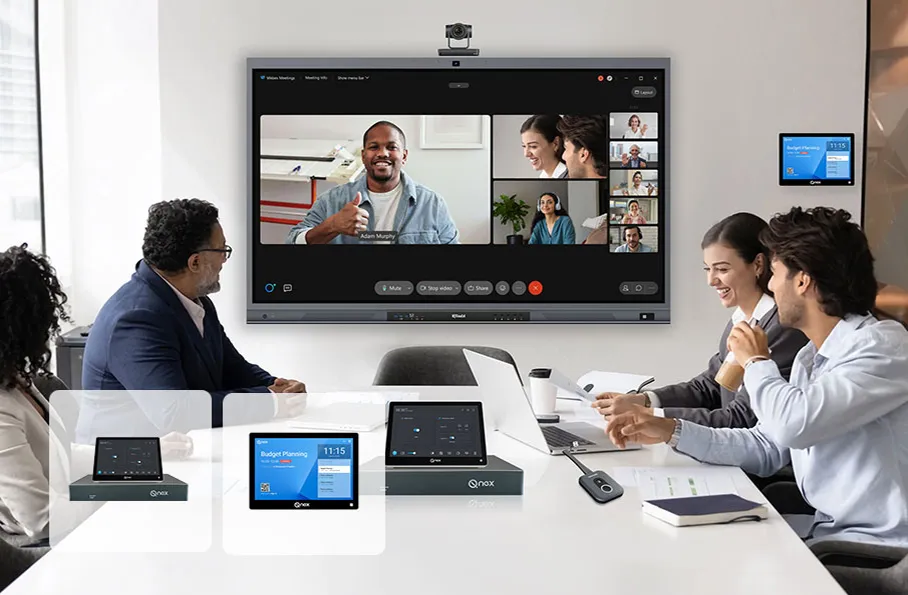
Depending on the project, a Q-NEX deployment can coordinate displays, AV sources, audio, cameras, lighting, air conditioning, and curtains through supported control interfaces. Users can select common room actions from a touch panel, while administrators can apply schedules and manage connected rooms through the Q-NEX platform.
A typical Q-NEX automation workflow may include:
- A room schedule or user command starts the workflow.
- A Q-NEX control device executes the configured AV and room commands.
- The touch panel presents a simplified meeting scene and allows approved manual adjustments.
- The Q-NEX platform provides centralized operation and management for connected rooms.
- An end-of-meeting or scheduled task returns devices to the required standby or shutdown state.
For B2B projects, this connected approach is particularly useful when an organization wants consistent room behavior across offices, campuses, training facilities, or other multi-room environments.
Meeting Room Automation Evaluation Checklist
Use the following questions when comparing meeting room automation solutions or discussing project requirements with an AV integrator:
- Which meeting workflows should be automated, and which actions must remain manual?
- Can the system use schedules, user commands, device feedback, and other required triggers?
- Are the selected displays, AV processors, cameras, audio systems, and room devices controllable through supported interfaces?
- Can users start the most common meeting scenarios with one clear action?
- Can users override automation without calling IT?
- Does the system confirm device state and expose failures clearly?
- Can IT monitor and manage multiple rooms from a centralized platform?
- Can room templates and schedules be standardized across locations?
- How will calendar, network, security, and building-system integrations be handled?
- Which performance metrics will be reviewed after deployment?
Frequently Asked Questions
What does meeting room automation include?
Meeting room automation can include scheduled device startup and shutdown, one-touch meeting scenes, AV source switching, audio and camera presets, lighting or curtain control, room-scheduling triggers, energy-saving rules, device feedback, and centralized management across multiple rooms.
What is the difference between meeting room automation and a control system?
A meeting room control system provides the interface and command layer for operating devices. Meeting room automation uses that control capability together with triggers and rules to perform a coordinated sequence automatically or through one high-level command.
Can meeting room automation work with room booking systems?
Yes, when the scheduling and automation platforms support the required integration. A booking or calendar event can act as a trigger to prepare the room, while cancellation or end-of-meeting logic can prevent unnecessary device operation.
Does every meeting room need automation?
Not every room needs advanced automation. Small rooms may only require a simple Start Meeting and End Meeting workflow. Larger or shared rooms benefit from more scenes, while multi-room deployments gain additional value from centralized schedules, monitoring, and standardized operation.
How does meeting room automation save energy?
Automation can place displays, projectors, audio systems, and other devices into standby after meetings or outside operating hours. Effective designs include sensible timing, status feedback, and manual override so energy rules do not interrupt active meetings.
Can Q-NEX automate multiple meeting rooms?
Q-NEX can support scheduled device operation, scene-based room control, touch-panel workflows, and centralized management across connected meeting rooms. The exact automation scope depends on the room design, device compatibility, and project requirements.
Conclusion
Meeting room automation turns routine setup and shutdown tasks into repeatable workflows. By connecting triggers, control logic, devices, and feedback, organizations can help users start meetings faster, reduce avoidable operating errors, improve energy discipline, and manage rooms more consistently.
The best automation projects begin with the meeting process, not the feature list. Define what users need to accomplish, keep the interface simple, preserve manual override, confirm device compatibility, and build centralized visibility into the design from the beginning.
Planning an automated conference room or a multi-room smart meeting deployment? Q-NEX can help connect AV control, scheduled tasks, scene presets, touch-panel operation, room scheduling, and centralized management in one scalable solution. Ready to automate your meeting rooms? Explore how Q-NEX connects AV control, room scheduling, scene presets, and centralized management in one smart meeting room solution.
Here are some other articles that we think might interest you:
Meeting Room Technology: The Complete Guide to Modern Collaboration
Meeting Room Equipment Checklist: What You Need for a Smart Conference Room
How to Build a Smart Meeting Room: A Complete Planning and Setup Guide