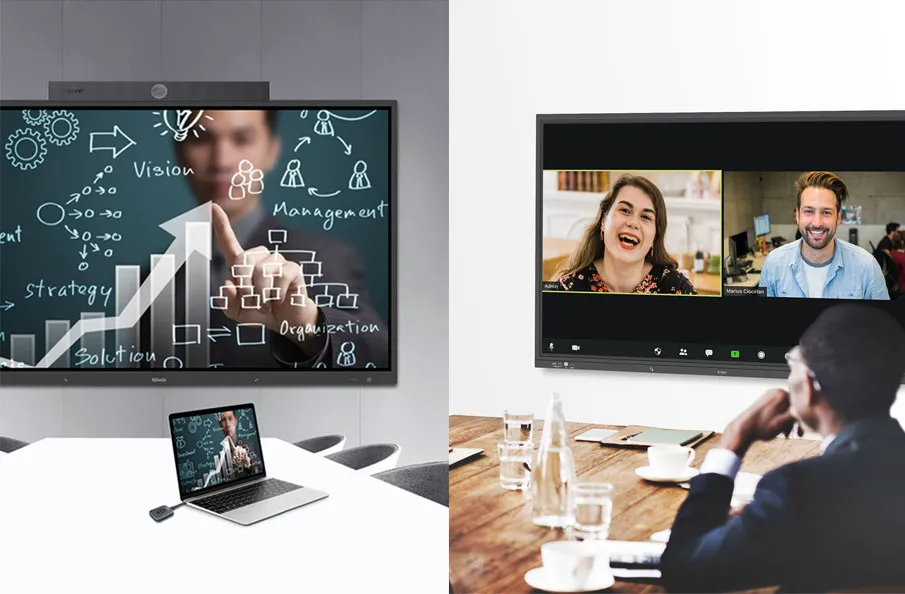
Screen mirroring, screen casting, and screen sharing are often used as if they mean the same thing, but they describe different ways to show content from one device on another screen. The difference matters whether you are presenting from a laptop, sharing an iPad to a display, joining a hybrid meeting, or designing a wireless presentation setup for a meeting room.
In simple terms, screen mirroring duplicates your device screen on another display. Screen casting sends specific media or app content to another screen, often while your device can still be used for other tasks. Screen sharing lets other people view your screen or application in a collaboration session, such as a video meeting or remote support call. In modern conference rooms, wireless screen sharing systems often combine parts of all three experiences so users can present without HDMI cables.
This guide explains the differences in plain language, shows where each method works best, and helps you decide what a smart meeting room should support.
Quick Comparison
| Method | What it does | Best used for | Privacy risk |
| Screen mirroring | Copies the full device screen to another display. | Showing slides, documents, mobile apps, dashboards, or local content exactly as seen on the device. | High, because notifications and private windows may appear. |
| Screen casting | Sends selected media or app content to a receiving display or player. | Playing a video, streaming media, or sending content from a supported app. | Lower, because the full device screen is usually not shown. |
| Screen sharing | Shares a screen, window, or application with other participants. | Online meetings, remote collaboration, training, webinars, and hybrid discussions. | Depends on whether the user shares the entire screen or one application. |
| Wireless screen sharing | A meeting-room-focused way to present from a laptop or mobile device to a room display without a cable. | BYOD presentations, team collaboration, training rooms, and conference rooms. | Managed by the room system and user workflow. |

What Is Screen Mirroring?
Screen mirroring is the process of duplicating the screen of a phone, tablet, or computer onto a larger display such as a TV, projector, interactive display, or meeting room screen. If you move your cursor, open a file, switch apps, or receive a notification, the audience sees the same action on the larger display.
This makes mirroring useful when you need the room to see exactly what is happening on the presenter’s device. For example, a trainer may mirror a tablet to demonstrate an app. A project manager may mirror a laptop to walk through a dashboard. A teacher or meeting host may mirror a document camera, whiteboard app, or browser window for a live explanation.
The main advantage of screen mirroring is simplicity. The presenter does not need to upload files, change formats, or open content on a separate system. The disadvantage is that everything on the screen can become visible. For professional meeting rooms, this means presenters should close private tabs, disable pop-up notifications, and prepare the content before connecting.
What Is Screen Casting?
Screen casting sends selected content from one device to another screen or receiver. Instead of copying the whole screen, casting usually passes a media stream, app content, or video source to a display. The receiving device plays the content, while the sending device often works more like a controller.
A common example is sending a video from a mobile app to a larger screen. Once the cast starts, the display plays the video while the mobile device can be used to pause, skip, or control playback. In some cases, the device can still be used for other tasks because the audience is not watching the entire phone or laptop screen.
Casting is useful when the content is media-focused and the app or device ecosystem supports it. It is less ideal when a presenter needs to move between files, compare multiple windows, annotate live, or show a workflow step by step. For many meeting rooms, casting alone is not enough because business presentations usually involve documents, slides, browsers, video meetings, and live discussion.
What Is Screen Sharing or Desktop Sharing?
Screen sharing, also called desktop sharing, usually means allowing other participants to view your screen, window, or application in a collaboration session. It is common in video conferencing tools, webinars, remote training, and support calls.
Unlike mirroring, which is usually device-to-display inside the room, screen sharing often sends content to remote participants through meeting software. Unlike casting, it is not limited to media playback. A user may share a full desktop, a single browser tab, a PowerPoint window, or a software application.
In hybrid meeting rooms, screen sharing and wireless presentation overlap. A local participant may share a laptop to the room display, while the same content is also sent into a Zoom, Microsoft Teams, or other video meeting. This is why a smart meeting room should be designed around the full collaboration workflow, not only around one display protocol.
Is Wireless Display the Same as Screen Mirroring?
Wireless display is a broader term. It means showing content on a display without using a physical video cable. Screen mirroring is one type of wireless display, but wireless display can also include casting, wireless presentation, and device-to-room sharing through a dedicated receiver or collaboration system.
This distinction is important for buyers. A product that supports wireless display may not support every protocol, every operating system, or every meeting workflow. Before choosing a solution, check whether users need Windows laptops, macOS devices, iPads, Android phones, guest devices, or multiple presenters to connect smoothly.
Screen Mirroring vs Casting: The Major Difference
The major difference between screen mirroring and casting is what the display receives. With mirroring, the display receives a live copy of the sender’s screen. With casting, the display receives selected content or a media stream. Mirroring is more flexible for business presentations because the presenter can show any screen. Casting is cleaner for media playback because it does not expose the whole device.
If you are presenting slides, comparing documents, explaining software, or switching between apps, mirroring or wireless screen sharing is usually the better fit. If you are playing a video or sending media from a supported app, casting may be enough. If remote participants need to see the content, screen sharing through meeting software or room AV integration becomes part of the workflow.
Which Method Works Best in a Meeting Room?
For a consumer living room, one method may be enough. For a professional meeting room, the question is different: how quickly can people walk in, connect, present, switch presenters, and leave without IT support?
A good meeting room setup should support different user habits. Some people bring laptops and expect wireless presentation. Some use tablets. Some join hybrid calls. Some need to display a browser, a dashboard, a whiteboard, or a video. The room system should make these workflows feel simple rather than forcing every user into one specific method.
For Q-NEX smart meeting room scenarios, wireless presentation is only one layer. The room may also need display control, audio routing, camera integration, power scheduling, and centralized device management. This is where a meeting room solution becomes more valuable than a standalone casting device.
If you are still defining the wider meeting room technology stack, treat wireless sharing as part of the room workflow rather than a separate accessory. A useful next step is to map how to build a smart meeting room around displays, audio, control, conferencing, and user access, then compare that plan with a practical meeting room equipment checklist before purchasing devices.
What a Q-NEX Wireless Presentation Solution Adds
A professional meeting room needs more than basic screen mirroring. A Q-NEX wireless presentation solution can support multiple ways to connect, including native mirroring from common devices, browser-based guest sharing, app-based sharing, and hardware button sharing for users who need a faster one-click experience. This helps visitors, executives, teachers, and internal teams present without changing cables or learning a complicated setup.
For collaboration, the system can support multi-user sharing and split-screen display, so several participants can compare content on the same room display. It can also support touchback, wireless annotation, reverse screen sharing from the room display to personal devices, and wireless control from a laptop, tablet, or phone. These features are useful when a meeting moves from a simple presentation into brainstorming, training, review, or decision-making.

For higher-value rooms, moderator control is especially important. The host can manage who is allowed to share, prevent unwanted interruptions, and keep the meeting focused. Larger rooms can also benefit from group display or one-to-many sharing, where content is shown across multiple displays so every participant has a clear view.
For hybrid meetings, BYOM support allows users to join meetings from their own laptops while using the room’s camera, microphone, and speaker system wirelessly. For IT and AV teams, encryption, connection passwords or PIN codes, centralized management, activity records, and optional integration with enterprise device management make wireless presentation easier to standardize across multiple meeting rooms.
How to Choose the Right Wireless Sharing Setup
- Start with the room purpose. A small huddle room may need fast laptop-to-display sharing, while a boardroom may need multi-source switching, dual displays, microphones, and video conferencing integration.
- List the devices users bring. Check whether the room must support Windows, macOS, iOS, Android, guest laptops, or shared company devices.
- Decide how private the workflow needs to be. If users often handle confidential files, make single-window sharing and clear connection prompts part of the process.
- Plan for hybrid meetings. Local display sharing should work smoothly with online meeting platforms so remote participants can see the right content.
- Check whether the room needs advanced collaboration features such as split-screen comparison, touchback, annotation, moderator control, reverse sharing, or BYOM access to the room camera and audio devices.
- Connect wireless sharing with room control. The best experience comes when screen sharing, display switching, audio, lighting, and device power can be managed through a unified room system.

Common Problems to Avoid
- Buying a casting device when the real need is flexible business presentation.
- Assuming every wireless display product supports every laptop, phone, or meeting platform.
- Ignoring privacy risks when presenters mirror their full desktop.
- Choosing a simple mirroring tool when the room actually needs moderator control, split-screen collaboration, BYOM, or centralized management.
- Forgetting audio. A screen can connect successfully while sound still plays from the wrong device.
- Making the user connect through too many steps before the meeting can start.
- Treating wireless screen sharing as separate from the wider AV control and meeting room management system.
Where Q-NEX Fits
Q-NEX focuses on integrated AV control and smart room management for education and corporate spaces. In a smart meeting room, wireless screen sharing should not stand alone. It should work together with the display, audio system, video conferencing equipment, touch control, and scheduled room operations.
For teams that need a wireless presentation system for conference rooms, the better question is not only whether users can connect wirelessly, but whether the room can support repeatable meetings every day. With a Q-NEX smart meeting room solution, teams can build a room where users present content more easily, compare multiple sources, control shared content, use room audio and video devices for hybrid meetings, and manage wireless presentation settings through a more centralized workflow. For organizations with multiple rooms, this also helps reduce repeated setup work and creates a more consistent user experience across meeting spaces.
FAQs
Is screen mirroring the same as screen casting?
No. Screen mirroring copies your full device screen to another display, while screen casting sends selected content or media to the display. Mirroring is usually better for live presentations and app demonstrations. Casting is usually better for media playback from a supported app.
What is the difference between screen sharing and screen mirroring?
Screen mirroring usually sends your device screen to a nearby display. Screen sharing usually sends your screen, window, or app to other meeting participants through collaboration software. In hybrid meeting rooms, both may be used together.
What does wireless screen sharing mean?
Wireless screen sharing means presenting content from a laptop, tablet, or phone to a display without an HDMI or USB-C cable. In meeting rooms, it often refers to a wireless presentation workflow that helps users share content quickly during meetings.
Which is better for conference rooms: mirroring or casting?
For conference rooms, flexible wireless screen sharing or mirroring is usually more useful than casting alone because business users need to show slides, documents, dashboards, browser tabs, and meeting content. Casting can still be useful for media playback, but it is not a complete meeting room collaboration workflow.
Do smart meeting rooms need wireless screen sharing?
Most modern meeting rooms benefit from wireless screen sharing because users expect to present without searching for cables or adapters. The strongest setup combines wireless sharing with AV control, audio, video conferencing, and room scheduling.
Conclusion
Screen mirroring, casting, and screen sharing all help move content from one device to another screen, but they solve different problems. Mirroring shows the full device screen. Casting sends selected content. Screen sharing supports collaboration with other participants. Wireless screen sharing brings these ideas into meeting rooms, where the goal is not only to display content but to make meetings easier to start, run, and manage.
If your organization is planning a smart conference room, look beyond one display feature. A more reliable meeting experience comes from combining wireless presentation, AV control, audio, video, and centralized room management into one practical workflow.
Here are some other articles that we think might interest you:
How to Enhance the Participant Experience with a Wireless Screen Share System
How Wireless Remote Control is Revolutionizing Classrooms with Q-NEX Technology