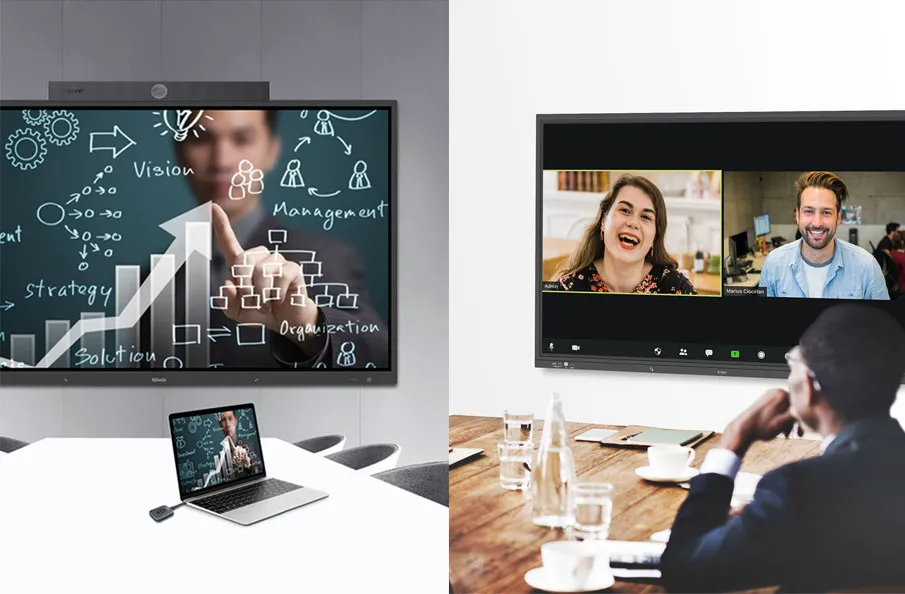
A conference room scheduling display is a screen installed outside a meeting room to show whether the room is available, booked, or in use. It helps employees check room status at a glance, book a space on the spot, confirm attendance, and avoid the confusion that often happens when Outlook, Teams, and physical room usage do not match.
For modern offices, schools, and hybrid workplaces, a meeting room booking display is more than a small screen beside the door. It becomes the visible connection between people, rooms, schedules, and centralized meeting room management. When the display is connected to a wider system, teams can reduce double bookings, release unused rooms, improve space utilization, and make shared rooms easier to manage.
This guide explains what a room scheduler display does, which features matter most, how it differs from meeting room automation, and how Q-NEX Room Scheduler CPL50 supports smarter booking workflows for meeting spaces.
Quick Answer: What Does a Room Scheduling Display Do?
| Function | Why it matters |
| Shows live room status | Employees can see whether a room is available, occupied, reserved, or about to be used. |
| Supports room booking | Users can reserve a room directly from the display when the space is free. |
| Confirms attendance | Check-in helps prevent ghost meetings and improves room usage accuracy. |
| Displays upcoming schedules | The screen gives everyone a shared source of truth for current and next meetings. |
| Connects to management | Administrators can monitor room usage, update settings, and improve space planning. |

Why Meeting Room Scheduling Still Breaks Down
Most organizations already use a calendar system, but a calendar alone does not always solve room-level problems. Someone may reserve a room and never arrive. A meeting may end early but the room still appears booked. A team may walk into a room that looks empty but is already reserved for another group. In a busy office, these small frictions add up quickly.
A conference room schedule display solves the physical visibility gap. Instead of asking employees to open a calendar, search for the room, or guess whether a meeting is still active, the display gives a simple answer at the room entrance. This is especially useful in offices with shared meeting areas, hot desks, hybrid teams, training spaces, or multiple floors.
For facilities and IT teams, the value is not only user convenience. Better visibility can reduce booking conflicts, improve space utilization, and reveal which rooms are overused or underused. This makes the room booking display part of operational efficiency, not just office decoration.
Conference Room Scheduling Display vs Outlook and Teams Booking
Outlook and Teams booking tells people what should happen. A room scheduling display shows what is happening at the room. The difference matters because meeting rooms are physical spaces. People need to know whether the space is available right now, whether a meeting is about to start, and whether they can book or extend the room without interrupting others.
For organizations using Microsoft 365, Q-NEX Room Scheduler CPL50 can be bound with Microsoft 365 so meeting information reserved through Outlook or Teams is synchronized to the room-side display. When a user books a meeting room in Outlook or Teams, the CPL50 can show the meeting schedule, room availability, and upcoming reservations at the door, making the digital calendar visible in the physical workplace.
This Microsoft 365 calendar synchronization is important because employees do not need to learn a separate room-booking workflow. They can continue using familiar tools such as Outlook and Teams, while the scheduling panel keeps the room entrance updated in real time. Administrators can also map the physical CPL50 panel to the correct Microsoft 365 room resource, keeping digital room mailboxes and real rooms aligned.
Room Scheduling Display vs Meeting Room Automation
A room scheduling display focuses on booking visibility, room status, check-in, and space usage. Meeting room automation focuses on device workflows, such as scheduled startup, shutdown, scene presets, and centralized control of displays, lights, audio, and other equipment.
These two systems work best together, but they should not be confused. The scheduling display helps people find and use the right room. Automation helps the room prepare and operate once the meeting starts. For example, a booking may confirm that a room is reserved at 10:00, while automation can turn on the display, prepare AV devices, and power down equipment after the meeting ends.
Key Features to Look For in a Meeting Room Booking Display
1. Real-Time Room Availability
The most important feature is clear availability. Users should immediately know whether a room is free, occupied, reserved, or about to be used. Color-coded status indicators are useful because they let people understand room status before they even touch the screen.
2. On-Screen Booking and Extension
A useful conference room scheduling display should support both planned and ad-hoc meetings. If a room is free, users should be able to reserve it directly from the display. If a meeting is created in Outlook or Teams, the room-side panel should reflect that booking so people outside the room see the same schedule.
3. Check-In and No-Show Control
Ghost bookings waste valuable meeting space. Check-in helps confirm that the meeting actually started. If a reserved room is not used, the system can help administrators release the room or identify recurring no-show patterns. QR code check-in is especially useful because it keeps the process fast and touchless.
4. Clear Schedule Display
The display should show the current meeting, the next meeting, and enough schedule context for users to plan quickly. The goal is not to overload people with calendar details, but to give just enough information to prevent confusion at the room entrance.
5. Centralized Management and Analytics
For multi-room environments, centralized management is essential. Administrators should be able to manage multiple room scheduler display units, update settings, monitor usage, and review occupancy data from one platform. Usage analytics can support better decisions about room size, layout, and future workplace planning.
6. Energy-Saving Operation
A scheduling display may stay mounted outside a room all day, so energy-saving design matters. Sleep mode and automatic power-saving behavior can reduce unnecessary consumption while keeping room information available when people need it.

How Q-NEX Room Scheduler CPL50 Supports Meeting Room Management
Q-NEX Room Scheduler CPL50 is designed as a practical conference room scheduling display for organizations that need clearer room visibility and more manageable meeting spaces. Its 10-inch touch display gives users a direct way to view room status, check schedules, and manage booking actions at the room entrance.
The visual status bar helps people identify availability quickly, which is useful in busy corridors, shared offices, schools, training centers, and enterprise buildings. Instead of opening a calendar app or asking around, users can see whether the room is free or in use before they enter.
CPL50 can also connect with Microsoft 365 so Outlook and Teams room reservations appear on the scheduling display. This is especially useful for organizations that already manage rooms through Microsoft 365 room resources: users can book through familiar Microsoft tools, while the CPL50 displays accurate room availability and schedule information outside the room.
CPL50 also supports QR code check-in, helping organizations reduce unused reservations and confirm that booked rooms are actually occupied. For administrators, integration with Q-NEX Console enables centralized room management, display settings, booking visibility, and space utilization analysis across multiple rooms. For IT teams that need the detailed setup process, the operation guide for binding the Q-NEX Room Scheduler CPL50 to Microsoft 365 explains the administrator permissions, Microsoft Graph configuration, and room resource binding steps.
When combined with the broader Q-NEX smart meeting room solution, room scheduling becomes part of a connected meeting experience. The scheduling display shows room availability, while the meeting room control system and automation workflows can help prepare AV equipment, displays, and other room devices for the meeting.

Where Scheduling Displays Fit in the Meeting Room Technology Stack
A scheduling display is one layer of the broader meeting room technology stack. It should work alongside displays, audio, video conferencing equipment, wireless presentation, room control, and centralized management. If you are planning upgrades, use a meeting room equipment checklist to confirm that scheduling, presentation, control, and conferencing are considered together instead of purchased as disconnected devices.
For small rooms, the goal may be simple visibility and fast ad-hoc booking. For training rooms, the goal may be preventing schedule conflicts in high-demand spaces. For large enterprises, the goal may be standardizing room booking and usage analytics across multiple floors, buildings, or campuses.
Best Use Cases for Room Scheduler Displays
- Small and medium meeting rooms where employees need quick visibility and instant booking.
- Executive rooms where interruptions and booking conflicts need to be minimized.
- Training rooms and presentation spaces that have high demand and fixed schedules.
- Hybrid workplaces where people need a simple way to find available collaboration spaces.
- Multi-room offices, schools, or campuses where administrators need centralized oversight.
Buying Checklist: What to Confirm Before Choosing a Scheduling Display
- Can users see real-time room availability from outside the room?
- Can users book, extend, release, or check into a meeting from the display?
- Does the display support clear status indicators for available and occupied rooms?
- Can the system synchronize room bookings from Outlook or Teams through Microsoft 365?
- Can the system reduce no-shows or ghost bookings through check-in workflows?
- Can administrators manage multiple displays from a centralized platform?
- Does the system provide room usage or space utilization data?
- Will it integrate cleanly with the rest of your smart meeting room setup?

Common Mistakes to Avoid
- Choosing a simple display screen that cannot sync with room status or management workflows.
- Treating scheduling as separate from the wider meeting room management strategy.
- Ignoring no-show meetings and unused reservations.
- Installing displays without a clear naming, booking, and check-in policy.
- Buying room devices without considering how they connect to the Q-NEX smart meeting room solution and long-term space planning.
FAQs
What is a conference room scheduling display?
A conference room scheduling display is a screen placed outside a meeting room to show real-time room availability, current and upcoming meetings, and booking options. It helps employees find and use rooms more efficiently.
What is the difference between a meeting room booking display and a room scheduler display?
The terms are often used interchangeably. A meeting room booking display emphasizes reservation and availability, while a room scheduler display emphasizes schedule visibility and room-side control. In practice, a good system should support both.
How does a room booking display prevent double bookings?
It shows real-time room status and keeps booking information visible at the room entrance. When connected to Microsoft 365, Outlook and Teams room reservations can be synchronized to the display, so users know whether a space is available before entering or booking it.
Do scheduling displays help with hybrid work?
Yes. Hybrid teams often use office rooms more dynamically, so real-time room availability and ad-hoc booking are valuable. A scheduling display helps employees quickly find the right space for in-person collaboration or video meetings.
Is a scheduling display the same as meeting room automation?
No. A scheduling display manages room availability, booking, and check-in visibility. Meeting room automation manages device workflows such as startup, shutdown, scene presets, and equipment control. They work well together but serve different purposes.
Conclusion
A conference room scheduling display gives people a clear, room-side view of availability and booking status. It helps reduce double bookings, improves room usage, supports ad-hoc meetings, and gives administrators better visibility into shared spaces.For organizations building smarter meeting spaces, Q-NEX Room Scheduler CPL50 brings scheduling visibility, Outlook and Teams synchronization, QR check-in, status display, centralized management, and usage insights into one practical room-side device. When connected with Q-NEX control and automation workflows, it helps turn meeting room management from a daily friction point into a more predictable, scalable process.
Here are some other articles that we think might interest you:
Operation Guide for Binding the Q-NEX Room Scheduler CPL50 to Microsoft 365
5 Must-Have Features for an Efficient Room Scheduler
Simple Beginner Guide to Understanding Room Scheduling Technology