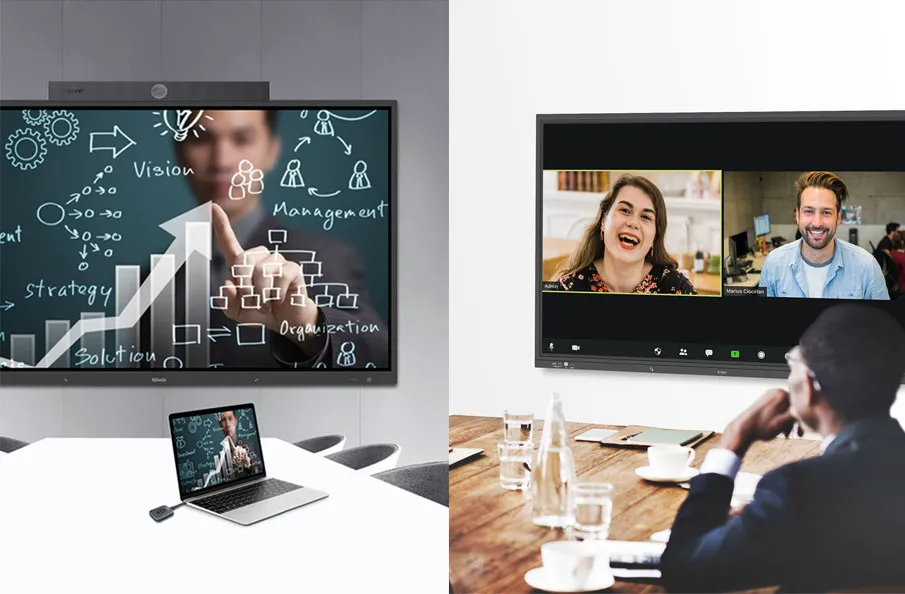
A smart podium can transform any classroom, boardroom, or conference hall into a high-tech space for seamless presentations, meetings, and collaboration. In this guide, we’ll walk you through everything you need to know to get your smart podium up and running efficiently.
1. What is a Smart Podium?
A smart podium is an advanced, interactive presentation tool designed to streamline the process of delivering content in a professional setting. It combines a computer, display, sound system, and control devices into a single unit. With smart podiums, presenters can control multimedia presentations, connect to external devices, and engage with their audience in real time, all from one central location.

1.1. Benefits of Using a Smart Podium
Here are several benefits of using a smart podium.
1.1.1. Efficiency in Presentations
Gone are the days of scrambling to connect cables, switching between different devices, and troubleshooting issues during a presentation. Smart podiums simplify everything, allowing you to focus on teaching and presentation. Whether you’re giving a lecture or leading a corporate meeting, the streamlined control interface makes managing your content easier than ever.
1.1.2. Improved Connectivity and Control
Smart podiums often come equipped with abundant connectivity options like HDMI, USB, RS232, etc. This enables seamless screen sharing, video conferencing, and easy connection to a range of devices as well as controlling classroom AV devices. With built-in control systems, presenters can adjust audio, video, and display settings all from one place without needing additional devices or assistants.
2. Key Features of a Smart Podium
Here are the key features of the QNEX smart podium NDP500.
2.1. Interactive Displays
At the core of a smart podium is its interactive display. These screens not only show your presentation content but also allow you to engage with the material directly. Touchscreen capabilities enable you to navigate slides, zoom in on diagrams, and even annotate content without needing a separate device.
2.2. Integrated Audio and Visual Solutions
Smart podiums are designed to be all-in-one solutions, meaning they integrate both audio and visual technology. With built-in speakers, microphones, and high-definition displays, the podium becomes the central hub for all your presentation needs. Whether you’re using it for a lecture or a business meeting, the podium ensures everyone in the room can see and hear the content clearly.
2.3. Wireless Connectivity and Casting
With the adoption of wireless devices like IQShare WP40, the smart podium has the ability to wirelessly connect to various devices, allowing you to easily cast content from your laptop, smartphone, or tablet to the podium’s display. This ensures that presentations are more flexible and collaborative.
3. Preparing for Setup

Before setting up the smart podium, we should check the points below in advance.
3.1. Choosing the Right Location
The first step in setting up your smart podium is choosing the right location. This is crucial for ensuring the optimal performance of both the podium and the room. Consider factors such as visibility, ease of access, and proximity to power outlets.
3.1.1. Space Considerations
Make sure there’s enough space for the podium, allowing the presenter to move freely and interact with the display without obstruction. Additionally, make sure the podium’s display can be viewed clearly by everyone in the room, whether seated or standing.
3.1.2. Proximity to Power Sources
It’s essential to place the podium near a power outlet to avoid any issues with the power supply. If you’re using devices that require charging or if your podium has a lot of additional peripherals, ensure there are enough outlets.
3.2. Selecting the Right Podium Model
Not all podiums are created equal. Choosing the right podium model depends on your specific needs.
3.2.1. Exploring Different Options
When browsing podium models, it’s important to consider your usage scenario. Will it be used in a classroom, a large auditorium, or a small meeting room? Do you need additional features such as video conferencing, touch interaction, or integrated recording?
3.2.2. Considerations for Your Specific Needs
Each setting might require different features. A classroom setting might need enhanced interactive capabilities, while a boardroom might prioritize wireless connectivity for seamless team collaboration.
4. Step-by-Step Guide to Setting Up a Smart Podium

Below, we’d like to list several step-by-step guides to help you better set up your smart podium.
4.1. Unboxing and Assembling the Podium
Once you’ve selected the perfect model, the next step is unboxing the podium and assembling it. Most podiums come with detailed instructions that make the process easy.
4.2. Connecting to Power and Internet
Plug the podium into a power source and connect it to your Internet connection. This will enable the smart podium to function at its full potential, allowing you to use all its connected features.
4.3. Configuring the Smart Podium Software
4.3.1. Updating Firmware and Software
Before you begin using your podium, it’s important to check for software updates. This ensures you’re using the latest features and security patches. Typically, the software can be updated via the podium’s settings menu.
4.3.2. Installing Necessary Drivers
If your podium goes with additional peripherals like cameras, microphones, or projectors for online teaching purpose, you may need to install drivers to ensure these devices work properly with the system.
4.4. Testing Connectivity and Features
Once everything is set up, test the podium’s features to ensure everything works smoothly.
4.4.1. Testing Interactive Features
Check if the touchscreen responds well and if you can annotate content, swipe through slides, and interact with digital materials.
4.4.2. Checking Audio and Visual Functionality
Test the microphone, speakers, and visual display to ensure all components are functioning correctly.
5. Customizing Your Smart Podium

To better suit the smart podium to your environment, we should customize several settings of our smart podium.
5.1. Setting Up User Profiles
Most smart podiums allow you to set up individual user profiles. This is especially useful for environments with multiple presenters or settings, as it allows each user to personalize the settings to their preference.
5.2. Personalizing Display Settings
Adjust the screen brightness, contrast, and resolution to your liking. You can also change the background theme or layout to match your presentation style.
5.3. Integrating Additional Devices
If necessary, you can integrate other devices into your smart podium setup, such as document cameras, external microphones, or additional screens like the interactive display or projector. This customization ensures the podium works for your specific needs.
6. Troubleshooting and Maintenance

Here we’re going to list several Troubleshooting and Maintenance tips for your better use of the Q-NEX smart podium.
6.1. Common Setup Issues
Sometimes, things don’t go as planned. The podium may not connect to the internet, the display might not be clear, or devices may fail to pair. These issues can usually be resolved through troubleshooting guides or customer support.
6.2. Maintaining Your Smart Podium
To ensure your podium stays in top condition, perform regular maintenance such as cleaning the screen and checking for software updates.
6.2.1. Regular Software Updates
Keep the software updated to maintain functionality and security.
6.2.2. Cleaning and Physical Care
Wipe down the podium regularly to avoid dust buildup and ensure smooth operation.
7. Conclusion

Setting up a smart podium can greatly enhance the way you deliver content and collaborate with others, whether in a classroom or a business environment. By following the steps in this guide, you’ll ensure a smooth setup process and unlock the full potential of your podium.
Need help setting up or have any questions? Contact us at Q-NEX Tech for expert support and to learn more about our range of podium solutions!
Here are some other articles that we think might interest you:
How to Set Up a Smart Podium NDP500
8 Advantages of Using Smart Podiums NDP500 in Classroom
Discover the Power of the NDP500: Revolutionizing Classroom Experiences with Smart Podiums