Table of Contents
- Introduction
- How to Use This Meeting Room Equipment Checklist
- Start with Requirements, Not Product Names
- Quick Meeting Room Equipment Checklist
- 1. Display or Interactive Flat Panel
- 2. Conference Camera
- 3. Microphones and Audio Pickup
- 4. Speakers and Sound Reinforcement
- 5. Wireless Presentation System
- 6. Meeting Room Control System
- 7. Touch Panel or Room Control Interface
- 8. Room Scheduler
- 9. Networked AV Processor or Presentation Switcher
- 10. Centralized Management Platform
- 11. AI Meeting Software
- Essential vs Optional Meeting Room Equipment
- Integration Checklist Before Purchasing Equipment
- Common Equipment Planning Mistakes
- How Q-NEX Helps Simplify Smart Meeting Room Equipment Planning
- Q-NEX Equipment Planning Reference
- Frequently Asked Questions
- What equipment is needed for a smart meeting room?
- What is the most important meeting room equipment for hybrid meetings?
- Do small meeting rooms need a control system?
- What is conference room AV equipment?
- How do I avoid buying unnecessary meeting room equipment?
- Can Q-NEX help with meeting room equipment planning?
- Conclusion
Introduction
A smart meeting room is only as strong as the equipment behind it. A clear display, a reliable camera, good microphones, simple content sharing, and one-touch room control can turn an ordinary meeting space into a productive collaboration environment.
But many organizations choose meeting room equipment one device at a time. The result is often a room that looks modern but still feels difficult to use: too many remotes, unclear audio, confusing cables, disconnected displays, and no easy way for IT teams to manage devices across multiple rooms.
This meeting room equipment checklist helps you evaluate the core technology stack for a smart conference room. Instead of repeating a full room-design process, it focuses on what each equipment category does, when it is necessary, and how to check whether the devices can work together as one manageable system.
How to Use This Meeting Room Equipment Checklist
This checklist is designed for facility managers, IT teams, AV integrators, education technology teams, and business decision-makers who need a practical way to compare equipment requirements before purchasing or deploying a smart meeting room solution.
Use it in three steps:
- Define the room type and main collaboration scenario.
- Select the equipment categories needed for that room.
- Check whether the devices can work together as one manageable system.
If you are still at the planning stage, this checklist can work together with a broader smart meeting room setup plan: first define the room purpose, then select equipment by room type, and finally confirm whether the devices can be managed as one system.
Start with Requirements, Not Product Names
A useful meeting room equipment checklist should begin with meeting requirements, not product names. The goal is not to choose the most advanced device in every category. The goal is to match equipment to the way the room will actually be used.
Before comparing devices, define the core requirements of the meeting space:
- Room booking: Do users need to see availability, reserve rooms, check in, or avoid double bookings?
- Wireless BYOD and BYOM: Do employees and guests need to present or join calls from their own laptops or mobile devices?
- Audio and video quality: Do remote participants need clear voice pickup, camera coverage, and consistent sound reinforcement?
- Room control and AV management: Will users need one interface to control displays, cameras, audio, source switching, and room modes?
- Centralized management: Will IT teams need to monitor, schedule, and manage multiple rooms remotely?
- Meeting intelligence: Do teams need transcription, translation, summaries, or structured meeting records after the session?
Once these requirements are clear, equipment selection becomes much easier. Room size still matters, but it should work as a filter for coverage and capacity rather than becoming the whole content strategy.
Quick Meeting Room Equipment Checklist
The following checklist summarizes the main equipment categories usually required for a smart meeting room.
| Equipment Category | What It Does | Selection Notes |
| Display or interactive flat panel | Shows presentations, video calls, dashboards, training materials, and shared content. | Choose based on room size, viewing distance, interaction needs, and whether single or dual-screen collaboration is required. |
| Conference camera | Captures in-room participants for remote collaboration. | Match the camera field of view, auto-framing, PTZ capability, and mounting position to the room layout. |
| Microphones | Pick up participant voices clearly. | Audio quality should be planned early. Choose tabletop, ceiling, beamforming, or wireless microphones based on room size and seating style. |
| Speakers | Deliver remote participant audio and media sound into the room. | Plan even coverage, echo control, and comfortable volume for all seats. |
| Wireless presentation system | Allows users to share screens without cables or adapters. | Important for BYOD, guest presenters, fast collaboration, and flexible meeting workflows. |
| Meeting room control system | Controls displays, audio, video, source switching, lighting, and meeting modes from one interface. | A key layer for simplifying user operation and reducing support requests. |
| Touch panel | Gives users a simple room control interface. | Place it where users naturally start a meeting, such as on the table or near the entrance. |
| Room scheduler | Shows availability and supports room booking or check-in. | Useful for offices, campuses, and organizations managing many shared meeting spaces. |
| Networked AV processor or presentation switcher | Connects and manages AV sources, displays, and signals. | Helps standardize conference room AV systems and support scalable deployment. |
| Centralized management platform | Allows IT teams to monitor, configure, schedule, and maintain multiple rooms remotely. | Critical for multi-room deployments and long-term operational efficiency. |
| AI meeting software | Supports real-time transcription, translation, speaker recognition, summaries, and meeting minutes. | Useful when meeting outcomes, multilingual collaboration, and follow-up efficiency are important. |
1. Display or Interactive Flat Panel
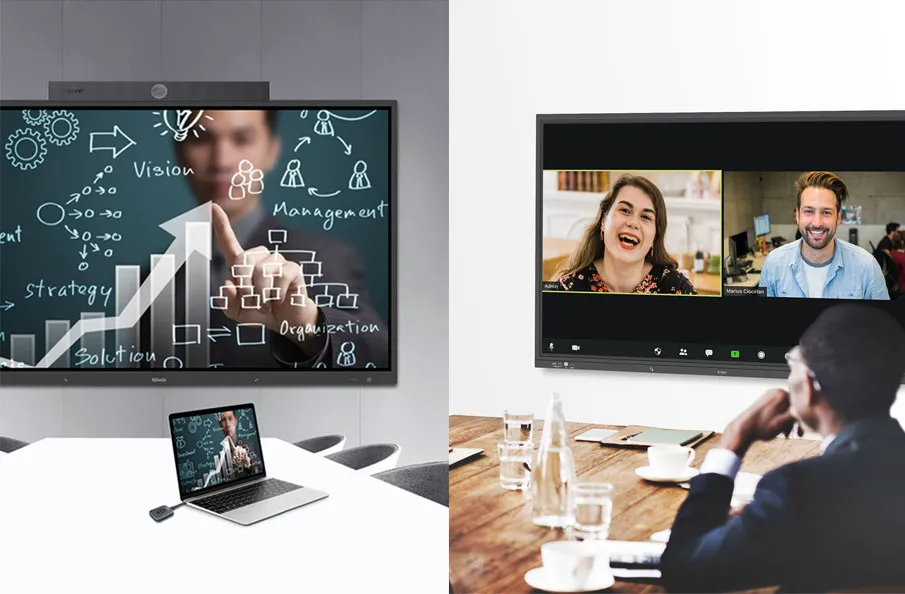
The display is the visual center of a meeting room. It may be used for presentations, video conferencing, digital whiteboarding, dashboards, training content, or collaborative document review.
For a standard meeting room, a commercial display may be enough. For a training room, ideation space, or customer demonstration room, an interactive flat panel can add more value because participants can annotate, write, and collaborate directly on the screen.
When choosing a display, consider:
- Room size and viewing distance.
- Single display vs dual display setup.
- Whether the room needs touch interaction.
- Mounting height, wall structure, glare, and camera position.
- Compatibility with wireless presentation and video conferencing workflows.
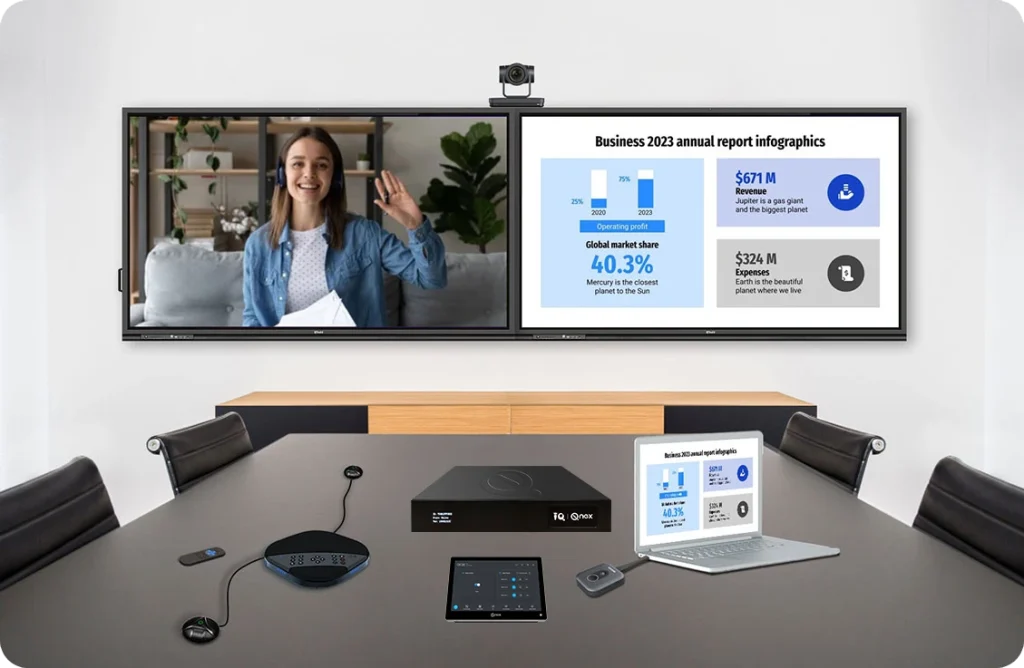
For hybrid rooms, dual displays are often helpful: one screen can show remote participants while the other shows shared content.
2. Conference Camera
A conference camera is essential for hybrid collaboration. The right camera helps remote participants see the room clearly and follow the meeting naturally.
Small huddle rooms may only need a wide-angle camera. Larger boardrooms or training rooms may require PTZ cameras, speaker tracking, auto-framing, or multiple camera angles.
Key selection points include:
- Field of view and participant coverage.
- Camera placement relative to the display.
- Auto-framing or speaker tracking requirements.
- USB, HDMI, or network-based connection options.
- Compatibility with common video conferencing platforms.
3. Microphones and Audio Pickup
Audio is often the most important part of a meeting room AV system. Remote participants can usually tolerate imperfect video, but poor audio quickly makes a meeting ineffective.
Microphone choices should be based on room size, seating layout, ceiling height, and whether speakers move around during the meeting.
Common options include:
- Tabletop microphones for fixed seating layouts.
- Ceiling microphones for clean table surfaces and wider pickup.
- Wireless microphones for training rooms and flexible spaces.
- Beamforming microphones for more advanced voice pickup and noise control.
Before choosing a microphone, map where people sit and where they speak from. This prevents dead zones, uneven pickup, and echo problems.
4. Speakers and Sound Reinforcement
Speakers make remote voices, videos, and shared media audible inside the room. The goal is not simply volume. The goal is clear, comfortable, even sound across the room.
For small rooms, integrated soundbars or display speakers may be enough. For larger rooms, ceiling speakers or wall-mounted speakers may provide better coverage.
Check the following:
- Room size and acoustics.
- Speaker position and coverage pattern.
- Echo cancellation and audio processing requirements.
- Volume control through the room control interface.
5. Wireless Presentation System
A wireless presentation system allows users to share content from laptops, tablets, or mobile devices without searching for cables or adapters. It is one of the easiest ways to improve meeting room usability.
For smart conference rooms, wireless presentation supports BYOD workflows, guest presenters, sales demos, brainstorming, and quick switching between presenters.
Important selection points include:
- Device compatibility across Windows, macOS, iOS, Android, and web sharing methods.
- Whether multiple users can share content in the same session.
- Display switching and source management.
- Network security and guest access control.
- Integration with the meeting room control system.
For rooms that frequently host guest presenters or BYOD meetings, wireless presentation should be planned as part of the main room workflow rather than treated as an optional accessory.
6. Meeting Room Control System
A meeting room control system is the layer that connects separate devices into a simple user experience. Instead of asking users to operate displays, speakers, cameras, lights, and signal sources one by one, a control system gives them one interface for the room.
A good conference room control system can support:
- One-touch meeting startup.
- Display and projector control.
- Source switching between laptop, wireless presentation, media player, and conferencing device.
- Audio volume and mute control.
- Camera presets and room modes.
- Lighting, curtains, and environmental control when needed.
This is especially important in B2B environments where meeting rooms need to be easy for employees, guests, executives, teachers, and external presenters to use.
When the room includes multiple displays, audio devices, conferencing systems, and signal sources, the control system becomes the difference between a room that looks advanced and a room that users can actually operate smoothly.
7. Touch Panel or Room Control Interface
The touch panel is where users experience the smart meeting room. A well-designed interface should make common actions obvious: start meeting, turn on display, select source, adjust volume, mute audio, switch mode, and end the meeting.
Place the panel where users naturally begin the meeting. In many rooms, that means on the conference table. In shared spaces, a wall-mounted panel near the entrance may also be useful.
The interface should be consistent across rooms. When users move from a huddle room to a boardroom, the basic control workflow should feel familiar.
8. Room Scheduler
A room scheduler helps teams find, reserve, and use meeting spaces more efficiently. It is especially useful for offices, campuses, and enterprises where meeting rooms are shared by many teams.
A scheduler can show room availability, upcoming meetings, check-in status, and booking information. In more advanced deployments, it can also connect with automation so the room prepares itself before a scheduled meeting.
Consider a room scheduler when:
- Meeting rooms are frequently double-booked.
- Employees waste time searching for available rooms.
- Facility teams need better visibility into room utilization.
- The organization wants scheduled device startup, shutdown, or energy-saving workflows.
For shared meeting spaces, room scheduling can also support broader workplace management by reducing booking conflicts and improving visibility into how rooms are actually used.
9. Networked AV Processor or Presentation Switcher
A smart meeting room often needs more than a display and a camera. When multiple sources, displays, audio devices, control interfaces, and room scenarios are involved, an AV processor or presentation switcher becomes important.
This layer helps manage signal routing, source switching, display output, audio processing, and integration with the control system. For organizations deploying multiple meeting rooms, using a standardized AV architecture makes maintenance and expansion easier.
Q-NEX smart meeting room deployments can use networked media processing and presentation switching to connect AV devices, simplify signal management, and support scalable room control.
10. Centralized Management Platform
Centralized management is what makes a meeting room system scalable. Without it, IT teams may need to check every room manually when a device fails, a schedule changes, or a configuration needs to be updated.
With centralized management, administrators can monitor device status, schedule power on and off, apply standard settings, manage multiple rooms, and respond to issues remotely.
This is especially valuable for:
- Enterprises with multiple offices.
- Schools and universities with many classrooms and meeting spaces.
- Training centers and conference facilities.
- Organizations that want consistent room experiences across departments.
For B2B decision-makers, centralized management can reduce support workload and improve long-term equipment value.
11. AI Meeting Software
Meeting hardware helps people communicate clearly, but the value of a meeting also depends on what happens to the conversation afterward. For organizations that run frequent hybrid meetings, training sessions, customer discussions, or multilingual meetings, AI meeting software can be part of the equipment planning conversation.
AI-powered meeting tools can support real-time transcription, speaker recognition, translation, automated summaries, and structured meeting minutes. These functions are not required for every room, but they can be valuable when teams need searchable records, faster follow-up, and clearer action items.
Treat AI meeting software as an optional productivity layer. It should not replace the core AV checklist, but it can make the overall meeting solution more complete when meeting content and post-meeting follow-up are important.
Essential vs Optional Meeting Room Equipment
Not every item on a meeting room equipment checklist has the same priority. Some equipment is essential for almost every modern conference room, while other items depend on collaboration style, management requirements, and deployment scale.
| Priority | Equipment | When It Matters Most |
| Essential | Display, camera, microphones, speakers | The room needs to support presentations, video calls, and clear communication. |
| Essential for hybrid work | Wireless presentation, conferencing compatibility, reliable audio pickup | Users need to share content quickly and include remote participants without friction. |
| Strongly recommended | Meeting room control system and touch panel | The room has multiple devices, sources, or user groups, and operation must stay simple. |
| Recommended for shared spaces | Room scheduler | Rooms are frequently booked by different teams, or the organization needs better visibility into availability and usage. |
| Recommended for scale | Networked AV processor, presentation switcher, centralized management platform | IT teams need consistent deployment, remote monitoring, device control, and easier maintenance across multiple rooms. |
| Optional by use case | Recording, streaming, AI meeting software, advanced automation, environmental control | The room supports training, webinars, executive presentations, multilingual collaboration, or more advanced workplace workflows. |
Integration Checklist Before Purchasing Equipment
Before purchasing devices, check whether the equipment will work together as a complete room system. This is where many meeting room projects succeed or fail.
- Can users start a meeting without IT support?
- Can laptops, mobile devices, and conferencing devices share content easily?
- Will audio pickup cover every participant clearly?
- Can the display, camera, audio, lights, and sources be controlled from one interface?
- Can IT teams monitor and manage the room remotely?
- Can the same equipment architecture be repeated across multiple rooms?
- Does the solution support future expansion, additional displays, or new collaboration workflows?
- If meeting records matter, can the system support transcription, summaries, or integration with meeting software?
The best smart meeting room equipment checklist is not simply a shopping list. It should help you build a room that works reliably every day and can scale as collaboration needs grow.
Common Equipment Planning Mistakes
A meeting room can include many modern devices and still create a poor user experience if the equipment is not planned as one system.
Choosing Video Before Audio
Many teams focus first on the camera and display, but audio quality is often the most important factor in hybrid meetings. Microphone pickup, speaker coverage, echo control, and room acoustics should be reviewed before finalizing the equipment list.
Buying Devices That Do Not Integrate
A display, camera, microphone, and wireless presentation device may all work individually, but that does not guarantee a smooth room experience. Check how each device connects, switches, and responds to the control system.
Ignoring Daily User Operation
If users need multiple remotes, adapters, or manual settings before every meeting, the room will feel difficult even if the equipment is technically advanced. A clear touch panel workflow can reduce this friction.
Forgetting Long-Term Management
Equipment decisions should account for maintenance, remote troubleshooting, device status visibility, scheduled power control, and future room expansion.
How Q-NEX Helps Simplify Smart Meeting Room Equipment Planning
Q-NEX helps organizations build smart meeting rooms by integrating AV control, wireless presentation, room scheduling, automation, and centralized management into one connected solution.
Instead of managing separate devices one by one, Q-NEX can help connect displays, audio, video, source switching, touch panel control, scheduling devices, and remote management through a unified architecture.
For a smart meeting room project, Q-NEX can support:
- Networked media processing and AV signal management.
- Wireless presentation and content sharing.
- Touch panel room control.
- Room scheduling and meeting space management.
- Centralized device management and automation.
- Scalable deployment across different room types.
- AI meeting productivity through transcription, translation, summaries, and structured meeting minutes when required.
For B2B projects, the key value is not only choosing the right devices, but making sure the equipment can be deployed, controlled, scheduled, and managed as one scalable smart meeting room solution.
Q-NEX Equipment Planning Reference
The exact product combination should depend on project requirements, but the following Q-NEX product categories can help teams translate the checklist into a practical equipment plan.
| Requirement | Possible Q-NEX / IQ Solution | Planning Note |
| Room booking and check-in | Q-NEX CPL50 Room Scheduler | Useful when room availability, calendar integration, walk-up booking, QR check-in, or shared room management is required. |
| Wireless BYOD / BYOM | IQShare WP50 Wireless Presentation System, IQShare Button Gen2 | Useful when users need fast content sharing and flexible device connection without cable friction. |
| All-in-one hybrid meeting AV | IQMeet HY300 All-in-One Videobar | Useful when a room needs simplified camera, microphone, and speaker deployment in one compact system. |
| Dedicated AV coverage | IQMeet CV810 Gen2 Conference Camera, S350 Speakerphone, SA200 Soundbar, PS610 speaker options | Useful when the room needs more flexible camera coverage or stronger audio pickup and sound reinforcement. |
| Presentation switching and control | Q-NEX NPS150 Presentation Switcher | Useful when multiple presenters, sources, displays, or control requirements need to be managed centrally. |
| Presenter workstation and training control | Q-NEX NDP600 Desktop Digital Podium | Useful when presenters need to present, annotate, control room devices, and manage sessions from one workstation. |
| Premium presentation and audio | Q-NEX SL100 Smart Lectern with Dante audio options | Useful for high-value meeting environments that require premium audio, professional presentation, and integrated control. |
| Centralized management | Q-NEX Platform | Useful for remote monitoring, room control, scheduled device operation, and multi-room management. |
| Meeting intelligence | IQMeetIn | Useful when transcription, speaker recognition, real-time translation, AI summaries, and meeting minutes are needed. |
Frequently Asked Questions
What equipment is needed for a smart meeting room?
A smart meeting room typically needs a display or interactive flat panel, conference camera, microphones, speakers, wireless presentation system, meeting room control system, touch panel, room scheduler, networked AV processor or presentation switcher, and centralized management platform.
What is the most important meeting room equipment for hybrid meetings?
For hybrid meetings, the most important equipment includes a reliable camera, high-quality microphones, clear speakers, a display, wireless presentation, and a simple control system. Audio pickup is especially important because poor sound affects remote participants immediately.
Do small meeting rooms need a control system?
Small rooms may not need a complex control system, but they still benefit from a simple interface that controls display, audio, wireless presentation, and conferencing devices. A consistent control experience is useful when an organization manages multiple rooms.
What is conference room AV equipment?
Conference room AV equipment includes audiovisual devices such as displays, cameras, microphones, speakers, wireless presentation systems, AV processors, presentation switchers, control panels, and room management tools.
How do I avoid buying unnecessary meeting room equipment?
Start with the required meeting workflow, then select only the equipment needed to support that workflow reliably. Prioritize audio, display, content sharing, control, and management requirements before adding optional automation, recording, or advanced room features.
Can Q-NEX help with meeting room equipment planning?
Yes. Q-NEX can help organizations plan smart meeting room equipment around AV control, wireless presentation, room scheduling, automation, and centralized management, so the room works as one connected collaboration system.
Conclusion
Choosing meeting room equipment should not be treated as a simple device purchase. A smart conference room needs a connected equipment stack that supports clear communication, easy content sharing, simple room control, and scalable management.
By planning displays, cameras, microphones, speakers, wireless presentation, control systems, scheduling devices, and centralized management together, organizations can create meeting rooms that are easier to use and easier to maintain.
Need help planning your smart meeting room equipment? Q-NEX can help connect AV control, wireless presentation, room scheduling, and centralized management into one smart meeting room solution.
Here are some other articles that we think might interest you:
What Is Q-NEX Smart Meeting Room Solution
Meeting Room Control Systems Explained
How to Build a Smart Meeting Room: A Complete Planning and Setup Guide