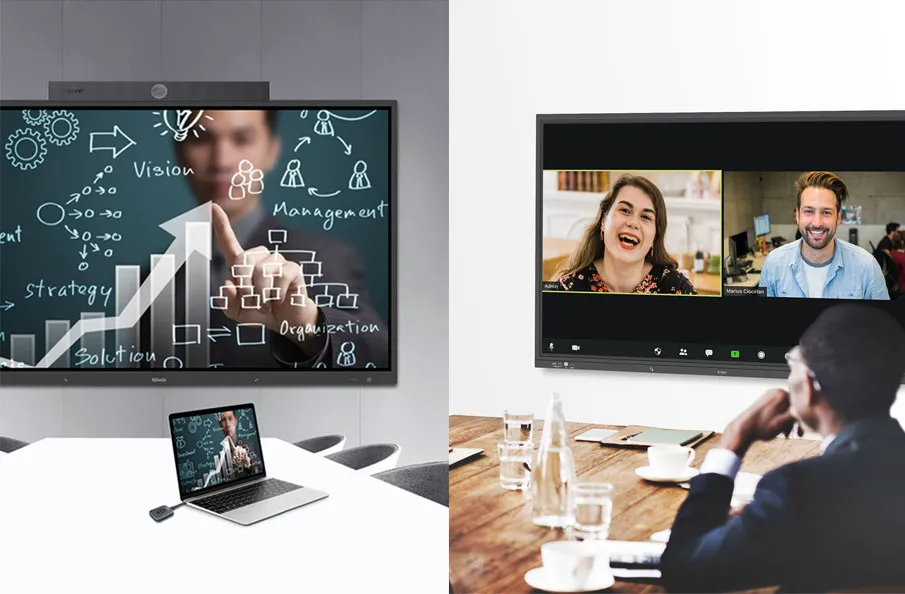
In today’s fast-paced, hybrid work environment, efficiently booking a meeting room with a robust Room Scheduler is key to staying productive. Whether your team is remote, in-office, or a mix of both, smooth scheduling avoids delays and space conflicts. From using a free meeting room booking system to integrating with tools like meeting room booking system Office 365 free, this guide covers smart strategies and tech tips to help you streamline the process—so every meeting starts on time, in the right place.

1. Why Efficient Room Booking Matters
The impact of efficient room booking extends far beyond simply avoiding scheduling conflicts. It’s a cornerstone of modern workplace optimization, directly affecting employee satisfaction, productivity, and the smart utilization of valuable office real estate.
1.1. Enhancing Workplace Productivity
When employees can quickly and easily find and reserve the right meeting space, it eliminates significant time waste. No more walking around the office searching for an open room, no more interrupting ongoing discussions, and no more last-minute rescheduling chaos. This saved time translates directly into increased productivity, allowing individuals and teams to focus on their core tasks and collaborative objectives. An efficient Room Scheduler frees up mental bandwidth, enabling a more focused and productive workday.
1.2. Supporting Hybrid Work Environments
The hybrid work model, where employees split their time between the office and remote locations, amplifies the importance of efficient room booking. In this fluid environment, the ability to book a meeting room seamlessly becomes crucial for ensuring that in-office days are maximized for collaboration. Hybrid teams need assurance that when they do gather physically, the necessary space and resources (like video conferencing equipment) are readily available. A robust Room Scheduler facilitates this flexibility, allowing teams to coordinate their physical presence effectively and ensuring that both in-person and remote participants have an equitable and productive meeting experience.

2. Understanding Your Office’s Booking Needs
Before diving into specific technologies, a critical first step is to thoroughly understand your office’s unique meeting space requirements and how your teams typically collaborate. This foundational knowledge will guide you toward the most suitable Room Scheduler solution.
2.1. Assessing Room Types and Requirements
Not all meeting rooms are created equal, and your Room Scheduler should reflect this diversity.
2.1.1. Small Huddle Rooms vs. Large Conference Spaces
Consider the range of meeting spaces you have. Small huddle rooms might be used for quick, impromptu discussions, while large conference rooms are typically reserved for formal presentations, client meetings, or major team gatherings. An effective Room Scheduler should allow for different booking parameters and visibility levels based on room type. For example, some might need to know how to book a meeting room in Outlook for a large conference, while others prefer a quick tap for a huddle.
2.1.2. Special Requirements
Beyond size, think about the specific features rooms offer. Does a particular room have a projector, a video conferencing setup, a whiteboard, or specific accessibility features? Your Room Scheduler should allow users to filter or search for rooms based on these criteria, ensuring the right space is chosen for the right purpose. This prevents frustrating discoveries midway through a meeting that essential equipment is missing.
2.2. Identifying Team Scheduling Patterns
Understanding when and how your teams use meeting rooms is vital for optimizing your Room Scheduler system.
2.2.1. Peak Booking Times and Frequency
Analyze when your meeting rooms are most in demand. Are there specific days of the week or hours of the day when rooms are consistently overbooked? This insight can inform strategies like encouraging off-peak bookings or considering additional flexible spaces.
2.2.2. Multi-Location and Time Zone Considerations
For organizations with multiple offices or a global workforce, the Room Scheduler must effectively handle different time zones and locations. The ability to view availability across various sites seamlessly is paramount for coordinated global teams. This means understanding the intricacies of a meeting room booking system Office 365 free solution or a similar robust platform that can manage complex, distributed schedules.
3. Leveraging Room Booking Technology
The core of efficient meeting room booking lies in adopting and effectively utilizing the right technology. This is where dedicated room schedulers and smart integrations truly shine.
3.1. Using Smart Room Schedulers
Dedicated smart room schedulers, typically physical displays mounted outside meeting rooms, are game-changers for real-time visibility and ease of use. A prime example is the Room Scheduler CPL50, designed specifically for smart meeting room booking.
3.1.1. Benefits of Touchscreen Interfaces
Devices with responsive touchscreen interfaces provide an intuitive way to interact with the Room Scheduler. Employees can walk up to a room, see its current status, view upcoming bookings, or make an ad-hoc reservation with just a few taps. The Room Scheduler CPL50 features a 10-inch touchscreen, making it convenient to view meeting details and book rooms for impromptu or future meetings. Its built-in check-in function allows users to quickly confirm attendance via QR code scanning, streamlining the process and reducing wait times.
3.1.2. Real-Time Availability and Status Indicators
These displays are constantly updated, showing the current status of the room in real-time. The Q-NEX Room Scheduler CPL50’s status bar provides a quick visual cue of room availability, allowing users to instantly know if a room is free without interacting with the screen. Its comprehensive meeting management features simplify the entire process—from scheduling and booking to check-in and information display—ensuring meeting schedules are always clear and visible on its 10-inch touchscreen. The device’s energy-saving design automatically enters sleep mode when the room is not in use, promoting sustainability.
4. Step-by-Step Guide to Booking a Meeting Room
With a modern Room Scheduler in place, booking a meeting room becomes a streamlined process. Here’s a typical workflow for how to book a meeting room efficiently:
4.1. Preparing for the Booking Process
A little preparation can ensure your booking is successful and your meeting runs smoothly.
4.1.1. Defining Meeting Objectives and Attendees
Before you even look for a room, clarify your meeting’s purpose and the number of attendees. This helps determine the ideal room size and required equipment. Knowing you need a room for 8 people with a projector for a client presentation narrows down your options considerably.
4.1.2. Checking Room Availability in Advance
Utilize your chosen Room Scheduler to check availability well in advance, especially for crucial or large meetings. Use the system’s calendar view or filtering options to find rooms that meet your criteria for the desired date and time. This proactive approach significantly reduces stress and last-minute scrambles.
4.2. Making the Booking
Once you’ve identified the perfect room, the booking itself should be quick and intuitive.
4.2.1. Using a Room Scheduler’s Interface
Navigate to your chosen room’s display or access the booking system via a compatible platform. Select the desired time slot, and the interface will guide you through adding meeting details, attendees, and any specific requirements. The Room Scheduler CPL50’s intuitive touchscreen interface simplifies this process, allowing users to book rooms directly at the device with minimal steps.
4.2.2. Confirming with QR Code Check-In
The Room Scheduler CPL50 offers a QR code check-in feature. Upon arriving at the room, simply scan the QR code displayed on the 10-inch touchscreen with your smartphone to confirm your presence.

4.3. Post-Booking Best Practices
The booking process doesn’t end with confirmation. A few good habits ensure smooth operations for everyone.
4.3.1. Communicating with Attendees
Ensure all attendees receive a calendar invite with the confirmed room details. If there are any changes to the booking a meeting room schedule, communicate them promptly.
4.3.2. Canceling or Modifying Unused Bookings
If your meeting is canceled or ends early, immediately update the Room Scheduler to release the room. This simple act of courtesy frees up the space for other teams who might urgently need to book a meeting room. This is crucial for maximizing overall office efficiency.
5. Optimizing Room Booking Efficiency
Beyond the basic steps, strategic approaches can further refine your office’s room booking efficiency.
5.1. Avoiding Common Booking Pitfalls
Proactive measures can prevent frustrations that undermine the benefits of a Room Scheduler.
5.1.1. Preventing Double Bookings
A robust Room Scheduler with real-time synchronization is the best defense. Ensure all booking channels (physical displays, calendar integrations, mobile apps) communicate instantly to prevent simultaneous reservations.
5.1.2. Managing No-Shows and Ghost Bookings
Implement and enforce a check-in policy. If a room isn’t checked into within a specified grace period (e.g., 10-15 minutes after the start time), the system should automatically release the room, making it available for others. This feature is particularly valuable if you’re using a free meeting room booking system that offers this capability.

5.2. Using Analytics for Better Planning
The data collected by your Room Scheduler is a goldmine for optimization.
5.2.1. Tracking Room Utilization Trends
Regularly review reports on how frequently each room is used, its busiest hours, and average meeting durations. This data helps identify underutilized spaces that might be repurposed or overbooked rooms that signal a need for more capacity.
5.2.2. Adjusting Booking Policies
Based on analytics, you might adjust booking policies (e.g., limiting booking durations for specific room types, implementing a minimum occupancy for large rooms) to better match demand and optimize resource allocation. This data-driven approach ensures your meeting room booking system Office 365 free solution or other platform is truly serving your organization’s evolving needs.
6. Choosing the Right Room Booking System
The best systems combine powerful features with ease of use.
6.1. Evaluating Features for Efficiency
The best systems combine powerful features with ease of use.
6.1.1. Scalability and Customization Options
Your chosen system should be able to grow with your company, accommodating more rooms or users as needed. Look for flexibility in customization, allowing you to tailor booking rules, room attributes, and user permissions to your specific organizational structure.
6.1.2. Sustainable and User-Friendly Design
Modern systems often incorporate energy-saving features to reduce environmental impact. The Room Scheduler CPL50, for example, features an energy-saving design that automatically enters sleep mode when the room is not in use, promoting sustainability. Its sleek and lightweight design seamlessly integrates with various spaces, combining functionality with aesthetics. Coupled with an intuitive, user-friendly touchscreen interface, this ensures the system is efficient and promotes easy adoption across teams.
6.2. Comparing Popular Solutions
The market offers a range of options, from integrated hardware-software solutions to broadly available cloud-based platforms.
6.2.1. Dedicated Room Scheduler Solutions
These systems typically feature displays mounted outside rooms, offering immediate visual cues and direct booking capabilities. The Room Scheduler CPL50, with its 10-inch touchscreen, real-time status bar, and QR code check-in, provides a robust, all-in-one solution for intuitive on-site management. It supports comprehensive meeting management, from scheduling and booking to check-in and information display, ensuring real-time room availability updates. Its sustainable design and seamless integration with modern office environments make it ideal for organizations seeking to optimize meeting room usage.
7. Conclusion
Mastering how to book a meeting room efficiently is fundamental to creating a productive, harmonious, and agile workplace. By embracing a modern Room Scheduler like the Room Scheduler CPL50 or leveraging capabilities within existing tools, you can transform your office’s space management. These systems streamline the process, enhance collaboration, optimize resource utilization, and ultimately contribute to a more efficient and satisfying employee experience. Contact us today to explore how smart booking solutions can elevate your workplace!
8. FAQs
What’s the best way to avoid double-booking a meeting room?
The most effective way is to use a centralized Room Scheduler with real-time availability updates. Devices like the Room Scheduler CPL50 ensure that once a room is booked, its status is immediately reflected on the touchscreen display, preventing concurrent reservations.
Can I find a free meeting room booking system that still offers essential features?
Yes, some providers offer a free meeting room booking system tier or trial, often with basic functionalities like calendar integration and real-time status. While they might have limitations compared to paid versions, they can be a good starting point for smaller offices or for testing the concept.
How do I book a meeting room in Outlook effectively using a modern system?
Many modern Room Scheduler solutions integrate directly with Microsoft Outlook. You can typically create a new meeting in Outlook, add the meeting room as an attendee, and the system will automatically confirm the booking and update the room’s physical display. This simplifies how to book a meeting room in Outlook by making the digital and physical spaces synchronized.
What is a “ghost booking,” and how do smart systems prevent it?
A “ghost booking” occurs when a meeting room is reserved but then the meeting is canceled or simply doesn’t happen, leaving the room empty and unavailable to others. Smart systems prevent this with features like QR code check-in (available on the Room Scheduler CPL50): if no one checks into the room within a set grace period, the system can automatically release the room, making it available for others to book a meeting room.
How do I ensure my Room Scheduler is ready for a hybrid work environment?
For a hybrid environment, ensure your Room Scheduler offers real-time availability, supports mobile and remote access for booking, integrates seamlessly with video conferencing tools, and provides analytics on actual room utilization to help optimize in-office collaborative spaces.
Here are some other articles that we think might interest you:
Step-by-step guide to setting up a room scheduler from scratch
Simple Beginner Guide to Understanding Room Scheduling Technology