Smart classroom management is the operational practice of keeping classroom AV and connected room technology ready, consistent, secure, and supportable across one room or an entire campus. It combines an accurate device inventory, clear user permissions, routine schedules, authorized remote control, status checks, repair handling, and usage review. The goal is simple: teachers should enter a room that works, while IT and AV teams can see and manage what is happening without visiting every classroom.
Here, “classroom management” does not mean student discipline, teaching routines, or monitoring the screens of student laptops and tablets. It also does not mean an LMS, school ERP, or mobile device management platform. This guide is for IT managers, AV teams, facilities staff, and campus operations leaders responsible for installed displays, projectors, audio systems, cameras, room-control devices, and other connected classroom equipment.
If you first need the wider definition and architecture of a connected learning space, start with the Smart Classroom Planning, Architecture and Technology Guide. This page goes deeper into the management and operating layer.
What Is a Smart Classroom Management System?
A smart classroom management system gives authorized staff a structured way to operate and support classroom technology at scale. Instead of treating each room as an isolated collection of devices, the school groups rooms and equipment into a manageable environment with standard names, roles, routines, status information, and support processes.
The exact system can vary. Some institutions only need a consistent local control interface and a simple inventory. Others need centralized visibility, remote actions, repeatable schedules, campus broadcasting, repair reporting, and usage data across dozens or hundreds of rooms. The right scope depends on the number of rooms, device variety, staffing model, network design, and the consequences of classroom downtime.
It helps to separate four terms that search results often mix together:
| Term | Main object being managed | Typical owner | Not the main task of this article |
| Smart classroom management | Installed AV, control and connected room equipment | Campus IT, AV and operations teams | Student discipline or teaching strategy |
| Classroom device management in this guide | Displays, projectors, audio, cameras, control terminals and connected room devices | IT/AV support | MDM for student laptops, tablets or Chromebooks |
| Classroom management software | Student screens, lesson activities, attention and teacher controls | Teachers and instructional technology teams | Room AV operations |
| School management system | Enrollment, attendance, fees, timetables and administration | School administration | Technical readiness of classroom AV |
This distinction matters because the evaluation criteria are different. A student-device platform may be strong at app distribution or content filtering but offer no control of a projector or audio processor. A room-control platform may manage installed AV well but should not be described as an MDM, LMS, or student-monitoring product.
How Smart Classroom Management Works

Most systems have three operational layers. The names differ by supplier, but the roles are easy to recognize.
1. The management and administration layer
This is where administrators organize sites, rooms, users, permissions, device records, and system settings. It should answer basic questions quickly: Which room is this? Which managed endpoint is assigned to it? What connected equipment should the interface control? Who is allowed to change settings? Where should a problem be routed?
A management layer is useful only when the underlying records are trustworthy. Agree on room names, device names, ownership, and a change process before importing hundreds of records. Otherwise, a central dashboard simply makes inconsistent data visible at a larger scale.
2. The operator layer
The operator interface is where approved users carry out daily actions. Depending on the deployment, that may include checking rooms, controlling compatible devices, changing AV sources, running a scheduled task, sending an announcement, or initiating a broadcast. The interface may be available through a browser, a local touch panel, or a mobile app.
The system should distinguish an ordinary room action from a high-impact campus action. Turning off one display is not the same as sending a mandatory broadcast or changing a schedule for every building. Permissions, confirmation steps, and operating procedures should reflect that difference.
3. Managed room endpoints and connected devices
A central interface does not control a classroom by magic. It communicates with compatible managed endpoints, which in turn operate the displays, audio equipment, switching, environmental controls, or other devices configured for that room. Core capabilities come from the endpoint model and the actual integration. A dashboard cannot add a hardware function that the selected terminal does not support.
For a deeper look at processors, panels and AV control architecture, use the AV control systems architecture and buying guide. Smart classroom management is concerned with how those room systems are operated and supported after deployment.
Seven Capabilities a Management Plan Should Cover
1. Inventory and naming
Build a room-level inventory before enabling remote actions. Record the site, building, room, managed endpoint, connected devices, model, network identity, control method, owner, installation date, support status, and replacement plan. Use names that a technician can match to the physical room and rack.
The inventory should also show which devices are not centrally manageable. A complete record of limitations is more useful than a dashboard that implies everything is online. Review the inventory whenever a device, cable path, control relationship, or room function changes.
2. Status and service visibility
Operations teams need to know whether a managed endpoint is connected and whether the room is available for its approved workflows. Decide what “healthy” means for each room type. A green status should not merely mean that one controller can reach the network if the display, audio path, camera, or local controls still cannot complete a lesson.
Define which conditions the system can detect, which require a local check, how often status is refreshed, and how staff are notified. If a supplier describes alerts, confirm the notification channel, thresholds, retry behavior, and version. Do not assume that every connected device exposes detailed health data.
3. Local and remote control
Teachers need a short and consistent local workflow. IT and AV teams may also need authorized remote actions for startup, shutdown, source selection, volume, display control, or recovery. Standard buttons and room states reduce confusion, but remote control should never remove the local fallback that keeps a normal lesson moving.
List every permitted remote action and its risk. High-impact commands should have tighter permissions, clear room targeting, and confirmation before execution. Keep a record of what the platform logs and what still requires a separate change record.
4. Schedules and routine operations
Schedules are useful for repeated and predictable work: preparing rooms before the first class, shutting equipment down after the timetable ends, running a recurring announcement, or applying a semester operating calendar. Good scheduling includes exceptions for holidays, exams, special events, maintenance windows, and rooms that should not follow the standard routine.
Scheduled power control can reduce unnecessary runtime when the equipment and policy are correctly configured. It does not make the platform a complete energy-management system, and it does not guarantee savings. Measure actual operating hours and review exceptions before making an energy claim.
Event-triggered IoT scenes are a different topic. If you need sensors, triggers, cross-device logic, safety conditions and fallback behavior, use the IoT smart classroom automation guide rather than expanding a schedule into an unsupported automation promise.
5. Users, roles, and permissions
Map each role to the smallest set of actions it needs. A teacher may need local room control. A help-desk technician may need status, restart and diagnostic access. A system administrator may need device configuration and user management. A communications team may need broadcast rights without access to technical settings.
Review access when staff change roles and after major system changes. The NIST Cybersecurity Framework 2.0 recommends managing and reviewing access permissions according to risk and using principles such as least privilege and separation of duties. Apply the institution’s own security policy, identity system, network segmentation, logging and retention requirements to the classroom environment.
6. Repair reporting and incident handling
A useful system shortens the path from “the room does not work” to a clear owner and next action. The report should identify the room, affected function, time, user impact, symptoms, attempted recovery, and current status. Staff should know which problems can be handled remotely and when a technician must go on site.
Define priority by service impact, not by how loudly a request arrives. A failed microphone in a large lecture hall may be more urgent than a secondary display problem in an unused room. After repeated incidents, look for patterns in device type, room design, control logic, training, network conditions, or maintenance practice.
7. Usage data and continuous improvement
Usage data is most useful when it supports a specific decision. Examples include whether a room function is used, when terminals are active, which broadcast methods are common, how much shared storage is occupied, or whether repairs are being completed. These signals can guide training, standardization, maintenance and replacement discussions.
Treat dashboard charts as operational evidence, not automatic conclusions. A low usage count may indicate that a feature is unnecessary, difficult to find, unreliable, or simply unsuitable for that teaching period. Review the number with room owners before removing equipment or changing a standard. Do not present sample dashboard figures as customer benchmarks or guaranteed outcomes.
A Practical Operating Rhythm for IT and AV Teams

A platform does not create a management process by itself. Use a simple operating rhythm that connects the system to real responsibilities.
Before the teaching day
- Check the rooms or managed endpoints that support critical sessions.
- Review failed or skipped scheduled tasks.
- Confirm special-event rooms and exceptions to normal schedules.
- Assign unresolved incidents and identify any room that needs a fallback plan.
During teaching hours
- Triage reports by room impact and time sensitivity.
- Use remote actions only when the symptom and recovery step are understood.
- Tell the local user what will happen before interrupting a display, audio path, or source.
- Escalate problems that involve cabling, power, network access, physical damage, or an unsafe condition.
After classes
- Confirm approved shutdown routines and record exceptions.
- Close incidents only after the intended room workflow has been retested.
- Update device, room and configuration records when anything changed.
Weekly and monthly review
- Group incidents by room, device type, symptom and root cause.
- Compare usage signals with room purpose and teaching schedules.
- Review permissions, stale accounts and high-impact operator roles.
- Identify repeated manual work that may be suitable for a schedule or a carefully designed automation.
- Feed lessons into room standards, training, spares and replacement planning.
This rhythm keeps monitoring connected to action. It also gives the school a way to distinguish a one-time fault from a design, training, configuration, or lifecycle problem.
What to Look For in a Smart Classroom Management System

Use the following questions in a supplier review or pilot. A polished dashboard should not replace evidence from the real rooms.
| Selection area | Questions to ask | Proof to request |
| Scope | Which installed classroom devices and workflows are in scope, and which are not? | Room-by-room supported-function matrix |
| Compatibility | How are existing displays, projectors, audio systems and controls integrated? | Current compatibility list plus a test in the school’s environment |
| Status | What does online, offline, warning or fault mean? Which device conditions are actually visible? | Live demonstration using a disconnected or failed test device |
| Remote actions | Which actions can be run per room, per group or campus-wide? | Role-based demonstration with confirmation and audit behavior |
| Scheduling | How are recurring tasks, holidays, exceptions and failed tasks handled? | Semester-calendar test and exception workflow |
| Roles and security | Can access be limited by organization, site, room, function and action? | Permission matrix, account workflow and security documentation |
| Incident flow | How are problems reported, assigned, updated and closed? | Sample repair workflow and current field/notification documentation |
| Data | Which usage and repair fields are available, for what period, and in what export format? | Current field dictionary and representative export |
| Resilience | What happens if the internet, cloud service, controller or network path is unavailable? | Documented local fallback and recovery test |
| Scale and change | How are devices added, replaced, renamed and moved between rooms? | Pilot-to-rollout procedure and change log |
| Support | Who owns software updates, configuration, training, escalation and lifecycle planning? | Responsibility matrix, support scope and version policy |
| Verification | How will each approved room workflow be tested and reported at handover? | Acceptance plan with measurable pass/fail criteria |
The last question deserves attention. The AVIXA Audiovisual Systems Performance Verification standard provides a framework for deciding what must be verified, when verification occurs, which criteria or measurements apply, and how results are reported. Even if a school does not formally adopt the standard, the principle is valuable: define acceptance evidence before rollout, not after users find problems.
How Q-NEX Fits the Management Layer
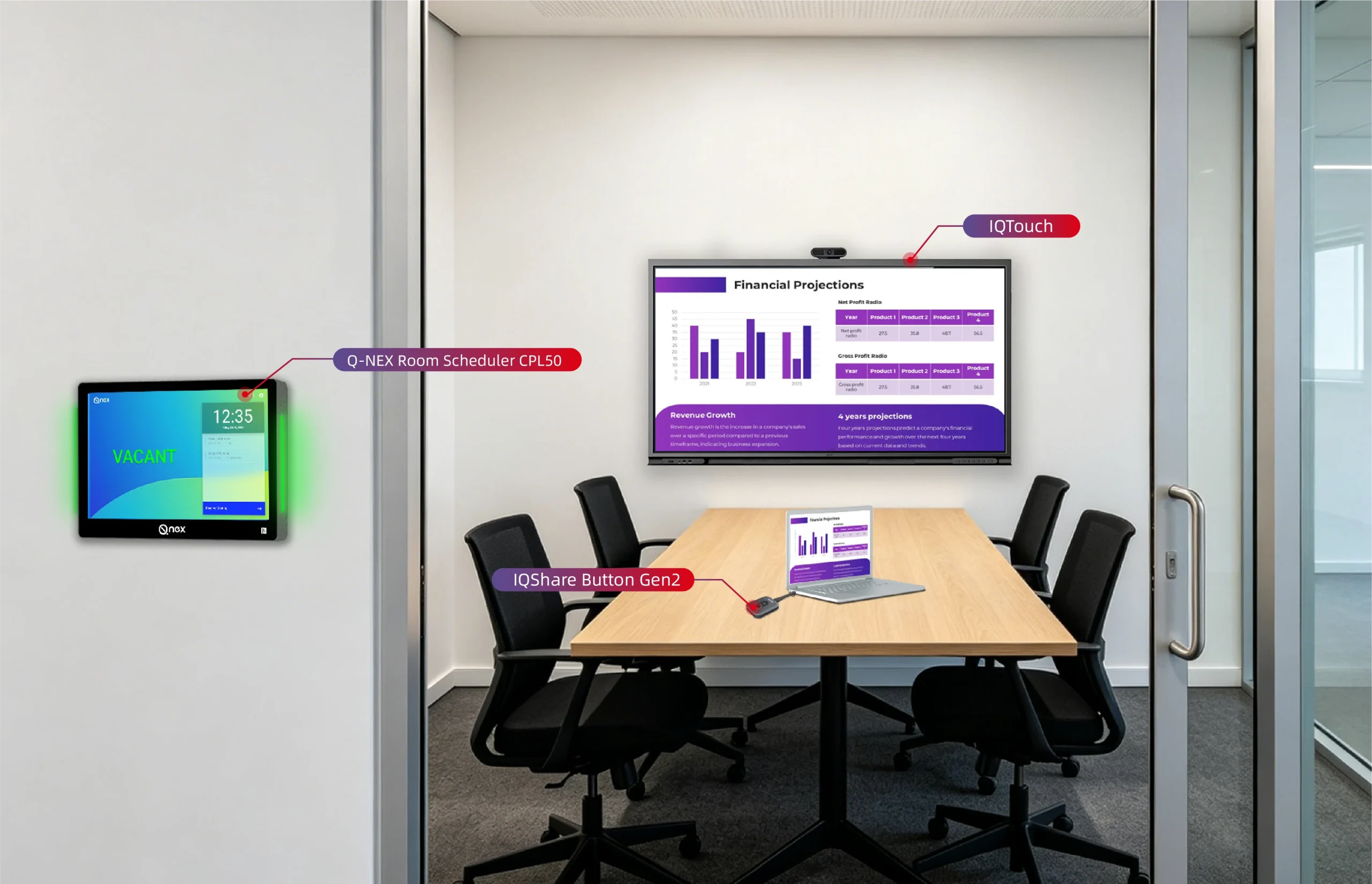
Q-NEX Platform is the cloud-hosted management environment used to access Q-NEX Console and Q-NEX Dashboard. The Q-NEX Console is the operator-facing interface. Through a web browser or the Q-NEX App on supported mobile devices, authorized users can perform supported remote device-control tasks, run audio, video or text broadcast operations, manage live-streaming operations, schedule tasks, and apply supported bulk controls. The App also supports repair reporting; current fields, routing, notifications and service commitments should be confirmed for the deployed version.
The Q-NEX Dashboard is the administrative interface for organizations, users, groups, permissions, terminal records, control relationships, card permissions where applicable, customer-side media-server settings, local storage allocation, and supported usage and repair statistics.
Compatible Q-NEX terminals connect that management environment to real rooms and devices. Different terminal families support different functions, so selection must be model-specific. Dashboard configuration binds terminals and defines control relationships; it does not grant a terminal a broadcast, switching, or control capability that its model does not have.
The Q-NEX Smart Classroom Solution is a relevant next step when a school needs coordinated local control, centralized operations, scheduling, and multi-room management. Start with the room inventory and operating workflows, then confirm the terminal mix, existing-device integration, permissions, network conditions, and support model.
Implementation and Handover Checklist
- Name the owner and scope. Define which team owns the platform, room controls, network, AV equipment, schedules, repair workflow, user access and lifecycle decisions.
- Inventory rooms and devices. Record managed and unmanaged equipment, identifiers, control methods, network and power dependencies, owners and replacement status.
- Define room service levels. Write the approved teaching workflows and the minimum state that makes each room ready for use.
- Design roles and permissions. Separate local teaching actions, support actions, configuration rights and high-impact campus operations.
- Standardize routine actions. Agree on startup, shutdown, source selection, volume, schedule exceptions and the local fallback.
- Build the incident path. Define reporting fields, priority, assignment, communication, escalation, retest and closure.
- Pilot representative rooms. Include a standard classroom, a complex room and an older room with equipment that must be retained.
- Verify real workflows. Test normal teaching, remote support, schedule exceptions, network loss, controller loss and recovery. Record pass/fail evidence.
- Train by role. Give teachers the short daily workflow and fallback; give support teams the diagnostics, configuration record and escalation path.
- Start with a review calendar. Check early incidents and usage after launch, then set monthly, termly and annual reviews for permissions, standards and lifecycle planning.
For the full project path from stakeholder discovery through room design, construction coordination, pilot and rollout, use the smart classroom design and implementation guide. This checklist stays focused on operations and handover.

Frequently Asked Questions
Is smart classroom management the same as classroom behavior management?
No. In this guide, smart classroom management means operating and supporting installed classroom AV and connected room equipment. Behavior management covers discipline, routines, relationships and teaching practice, which belong to a different owner topic.
Is classroom device management the same as MDM?
Not here. Mobile device management normally handles laptops, tablets or phones through enrollment, configuration, apps and security policies. This article uses classroom device management for installed displays, projectors, audio, cameras, control terminals and other connected room equipment.
What should a smart classroom management system monitor?
At minimum, it should show the status that the selected endpoints can reliably provide and tie each record to a real room and owner. More detailed visibility may include connected-device state, usage, schedules or repair information, but the exact fields depend on the terminal, integration and platform version.
Can a school use centralized control with existing classroom equipment?
Often, but not automatically. Check each device’s control interface, protocol, network path, power behavior and supported commands. Run a representative-room pilot before assuming that a third-party device can expose every desired function.
Do scheduled shutdowns guarantee energy savings?
No. A schedule can reduce unnecessary runtime when it matches the real timetable and equipment behavior, but actual savings depend on usage, device power characteristics, exceptions and enforcement. Measure the result and avoid treating a control platform as a complete energy-management system.
What data is useful for classroom operations?
Useful data answers a decision question. Examples include terminal activity, feature use, broadcast methods, storage use, repair volume and completion status. Combine the figures with room purpose, timetable and user feedback before changing a standard or replacing equipment.
When does centralized management make sense?
It becomes more valuable as the number of rooms, device types, schedules and support handoffs increases. A single simple room may only need reliable local control and documentation. A campus with many rooms benefits more from shared visibility, standard permissions, batch operations, schedules and consistent incident handling.
Conclusion
Good smart classroom management is not a long feature list. It is a clear operating system for people: accurate room records, appropriate permissions, predictable routines, reliable status information, disciplined incident handling, useful data, and a tested fallback when technology fails.
If your school needs to coordinate classroom AV and connected devices across multiple rooms, review the Q-NEX Smart Classroom Solution or contact Q-NEX to map your rooms, workflows, existing equipment, management roles and support requirements before selecting an architecture.
Here are some other articles that we think might interest you:
What Is Classroom Management and Why Is It Important?